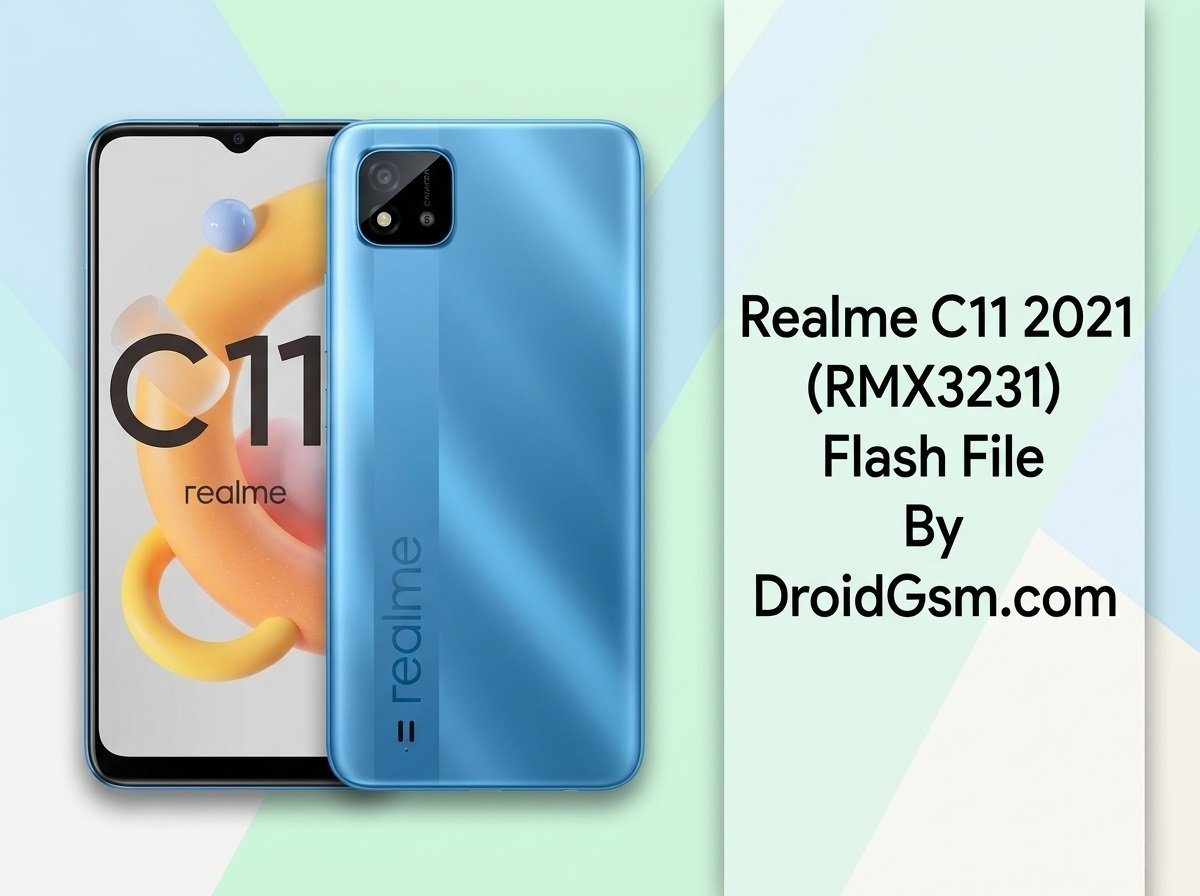
Realme C11 (2021) RMX3231 Hang on Logo, Dead Boot, Screen Lock, and FRP Lock
The Realme C11 (2021) (RMX3231) is an affordable smartphone powered by the Unisoc SC9863A platform. Like many budget Android devices, it frequently encounters software glitches such as being stuck or hanging on the logo boot loop, suffering a dead boot error after a failed system update or bad pattern format, or getting locked out via Factory Reset Protection (FRP) and screen locks. Flashing the stock firmware using a compatible Unisoc flashing tool is the definitive solution to completely repair these software failures.
Here are the official hardware specifications for the Realme C11 (2021) (RMX3231):-
-
- Model Name:- Realme C11 2021 Edition (RMX3231)
- Processor (CPU):- Unisoc SC9863A (Octa-core architecture, built on 28nm process, with clock speeds up to 1.6 GHz)
- Graphics (GPU):- PowerVR IMG8322
- RAM Capacity:- Available in 2GB or 4GB LPDDR4X configurations
- Internal Storage:- Available in 32GB or 64GB options, utilizing eMMC 5.1 flash storage technology
- Storage Expansion:- Dedicated microSD card slot, supporting expandable memory up to 256GB
- Operating System:- realme UI Go Edition, built on the Android 11 platform
- Display Screen:- 6.5-inch IPS LCD panel featuring an HD+ resolution (720 x 1600 pixels) with a teardrop notch
- Rear Camera System:- 8 MP single primary camera with an f/2.0 aperture and integrated LED flash
- Front Camera System:- 5 MP selfie camera with an f/2.2 aperture
- Battery Power:- 5000 mAh non-removable Lithium-Polymer cell, supporting standard 10W charging via microUSB 2.0
Resolving Hang on Logo, Dead Boot, and FRP Locks:-
Flashing a stock ROM restores every critical operating system partition (
boot, system, vendor, userdata) back to factory settings. This action removes screen locks, bypasses the Google FRP account check, and corrects boot-loop states caused by partition corruption.Prerequisites & Preparation
-
- Charge the Battery:- Ensure the device is charged to at least 50% to prevent unexpected shutdowns mid-flash.
- Install Drivers:- Download and install the Unisoc/SPD USB Drivers on your PC to ensure standard serial connection.
- Backup Data:- Flashing will completely erase all internal storage files.
Step-by-Step Flashing Procedure:-
-
- Extract the downloaded Realme C11 (2021) Official Stock ROM on your computer. It contains the target operating file in a
.pacextension format. - Download and run the SPD Upgrade Tool (Research Download Tool) as an administrator on your desktop.
- Click on the Gear icon (Load Packet) situated in the upper left corner of the interface. Browse and select your extracted
.pacfirmware bundle. Wait for the tool to parse the partition maps completely. - Click the Play button (Start Downloading) to prime the flashing environment.
- Turn off your Realme C11 (2021). Hold down both the Volume Up and Volume Down buttons simultaneously while plugging the device into your PC via a USB cable.
- Release the keys immediately once the flashing utility detects the connection and triggers a progress bar change.
- Once completed, a Passed message will display. Safely disconnect the device and power it back up.
- Extract the downloaded Realme C11 (2021) Official Stock ROM on your computer. It contains the target operating file in a
Download Firmware, Tools & Drivers:-
All verified tools and firmware packages needed to repair the device software environment are available below:-
- Stock ROM File:- Download Realme C11 2021 RMX3231 Stock Firmware (PAC File)
- Flashing Application:- Download SPD Flash Upgrade Tool (Latest Version)