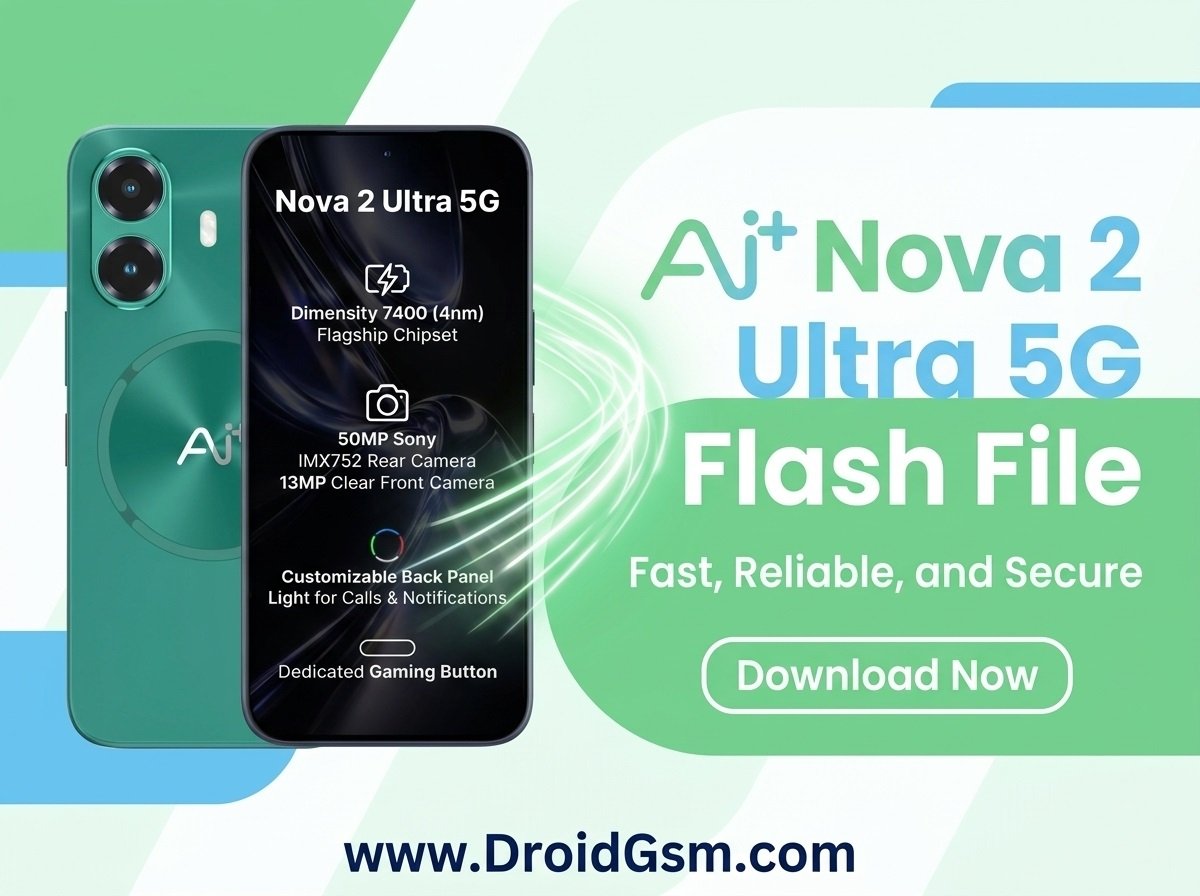
How To Flash Ai+ Nova 2 Ultra 5G: Fix Hang on Logo, Boot Loop, and Dead Boot
The Ai+ Nova 2 Ultra 5G is a high-performance smartphone, but operating system glitches can happen to any device. Severe software corruptions can lead to frustrating problems like a hang on logo, continuous boot loops, or even a complete dead boot status where the phone fails to power on at all. When your device faces these extreme system failures, performing a hard reset is rarely enough. The most effective solution is to completely overwrite the corrupted software by flashing the official Ai+ Nova 2 Ultra 5G Flash File (Stock ROM). This technical guide outlines the safe, step-by-step procedure to revive your device using a computer.
The Ai+ Nova 2 Ultra 5G balances strong performance with high-end features:-
-
- Processor:- Powered by an octa-core MediaTek Dimensity 7400 chipset with native 5G support.
- Display:- Features a smooth 6.7-inch AMOLED screen with a 120Hz refresh rate.
- Cameras:- Equipped with a 108MP main rear camera and a 32MP front selfie camera.
- Memory & Storage:- Built with 12GB of RAM and 256GB of internal storage.
- Battery & Power:- Packed with a 5000mAh battery that supports 67W fast charging.
- Operating System:- Ships out-of-the-box running on Android 14.
Important Prerequisites:-
Before starting the flashing process, make sure your workspace is ready to prevent further damage to your phone:-
-
- Charge Your Battery:- Your phone must have at least 50% battery power to prevent it from shutting down mid-flash.
- High-Quality USB Cable:- Use an original or highly reliable USB data cable to ensure a steady connection.
- Install MediaTek Drivers:- The Ai+ Nova 2 Ultra 5G relies on a MediaTek processor. Download and install the latest MTK USB VCOM Drivers on your Windows PC so your computer can detect the device in its low-level interface mode.
- Backup Your Data:- Flashing entirely wipes the internal storage of the phone. Ensure you have backed up any critical data if your device is still accessible.
Required Files and Software Tools:-
To repair a dead or bootlooping phone, you will need to gather three essential packages on your computer:
-
- The Official Ai+ Nova 2 Ultra 5G Stock Firmware (Flash File).
- An authorized MTK Flashing Tool (such as SP Flash Tool, UnlockTool, or an authorized service box utility).
- The device layout / Scatter file (this file is included inside the firmware package).
Ai Plus Nova 2 Ultra SW V08 20260602 Flash File
Password:- Ai+NovA2DroidGsmUltrA
Step-by-Step Flashing Procedure:-
Step 1:- Extract the Packages
-
- Download the correct firmware package for your specific variant of the Ai+ Nova 2 Ultra 5G.
- Extract the firmware ZIP archive using a tool like WinRAR or 7-Zip. It is highly recommended to extract these files directly to the root of your local disk drive (e.g.,
C:\AiPlus Nova2 Ultra 5G Firmware\) to prevent errors caused by excessively long file paths.
Step 2:- Load the Firmware into Your Flashing Tool
-
- Launch your MediaTek flashing software on the PC as an administrator.
- Navigate to the firmware configurations tab and click on the option to load a configuration file.
- Browse inside your extracted firmware folder and select the text file ending in
_scatter.txt. - The utility will automatically scan the text configuration and map out all individual system partitions like Boot, System, Recovery, and Preloader.
Step 3:- Select the Appropriate Flashing Mode
Depending on how severely damaged your operating system is, select your mode carefully:-
-
- For Boot Loops & Hang on Logo:- Select Download Only or Firmware Upgrade. This will refresh the OS without messing with your device’s core identification data (IMEI/NVRAM).
- For Dead Boot Repair:- If your device is completely unresponsive and only registers as an MTK port when plugged in, you must use Firmware Upgrade mode. This forces the utility to completely rewrite the corrupted preloader partition table, which is vital for waking up dead hardware.
Step 4:- Establish the Hardware Connection
-
- Click the Download or Flash button inside the computer software. The software will enter a standby phase, awaiting a hardware connection.
- Turn off your Ai+ Nova 2 Ultra 5G completely. If it is stuck in a loop, you can force a shutdown by holding the power button for 10–15 seconds, or let the battery drain completely and plug it into a low-voltage power source briefly before attempting.
- Hold down both the Volume Up and Volume Down keys simultaneously.
- While holding those buttons, connect the phone to your computer via the USB cable.
Step 5:- Complete Reflash The Phone
-
- Once the flashing tool registers the connection, a colored progress bar will begin moving across the bottom of the interface. You can now release the volume buttons.
- Keep the phone completely still on a flat surface. Do not touch the cable or disturb the computer while the firmware blocks are being written.
- When the process finishes, a green checkmark or a “Download OK” popup will confirm the success.
- Disconnect the USB cable and hold down the Power button until you feel a vibration. Note that the first initial boot can take anywhere between 5 to 10 minutes to properly initialize the fresh Android directory.