How to Flash Ai Plus Nova 2 5G (Fix Hang on Logo, Dead Boot, & Remove Screen Locks/FRP)
If your Ai Plus Nova 2 5G is stuck on the hang on logo, experiencing a dead boot condition after a failed update, or locked by a forgotten password, pin, or FRP lock (Google Account Lock), flashing the official stock firmware is the definitive solution. Because the Ai Plus Nova 2 5G runs on an SPD / Unisoc processor rather than a MediaTek chipset, you must use the official SPD Upgrade Tool (ResearchDownload) and a
.pac extension firmware file. This comprehensive guide provides the exact specifications of the phone and the step-by-step procedure to flash it safely.Ai Plus Nova 2 5G Specifications:-
-
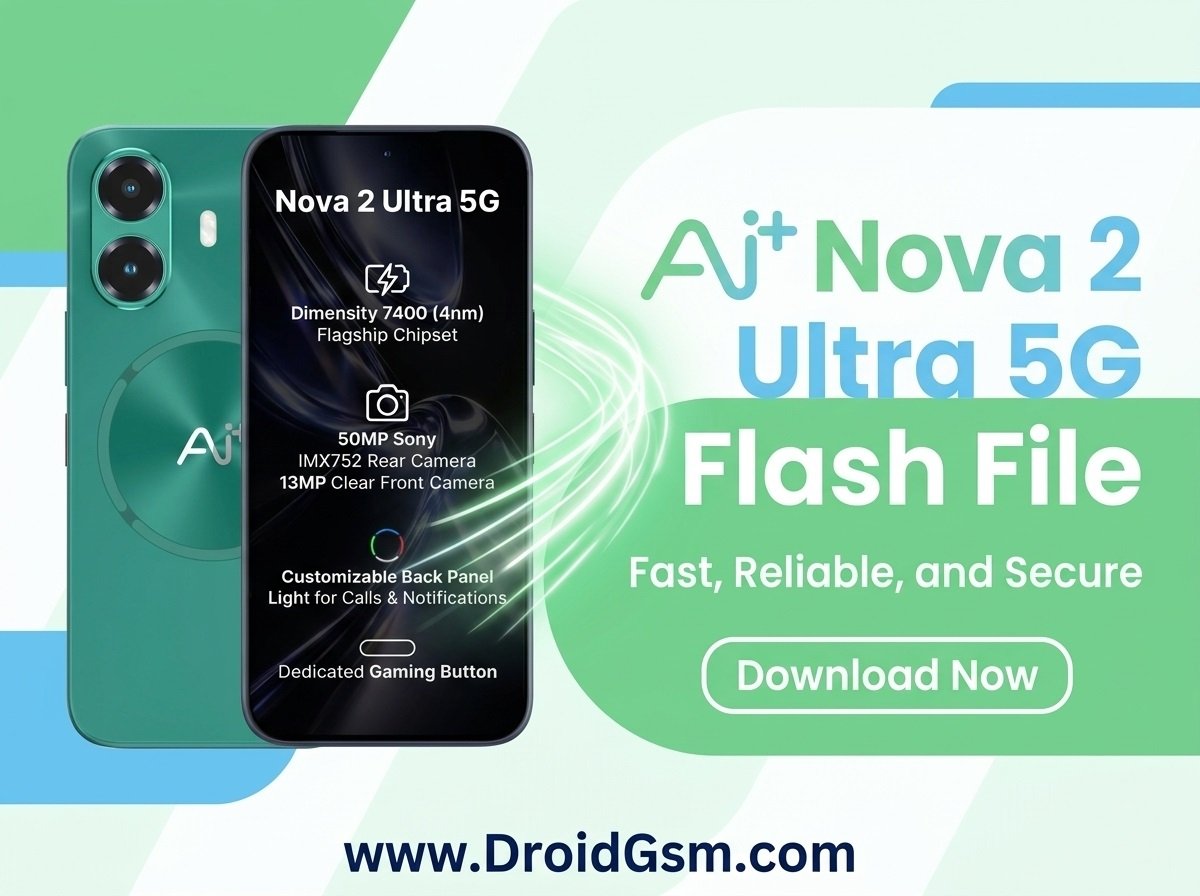
- Processor: Unisoc (Spreadtrum) T820 Octa-Core processor clocked up to 2.3 GHz.
- Display: 6.745-inch HD+ V-Notch screen featuring a resolution of 720 x 1600 pixels.
- Operating System: NxtQuantum OS (engineered on top of Android 16).
- RAM Memory: 4 GB or 6 GB LPDDR4X options for multitasking.
- Internal Storage: 64 GB or 128 GB onboard storage capacity, expandable up to 1 TB via a dedicated microSD card slot.
- Rear Camera: 50 MP AI Main Sensor paired with a dedicated LED Flash.
- Front Camera: 8 MP Selfie Camera optimized for basic facial recognition and video calling.
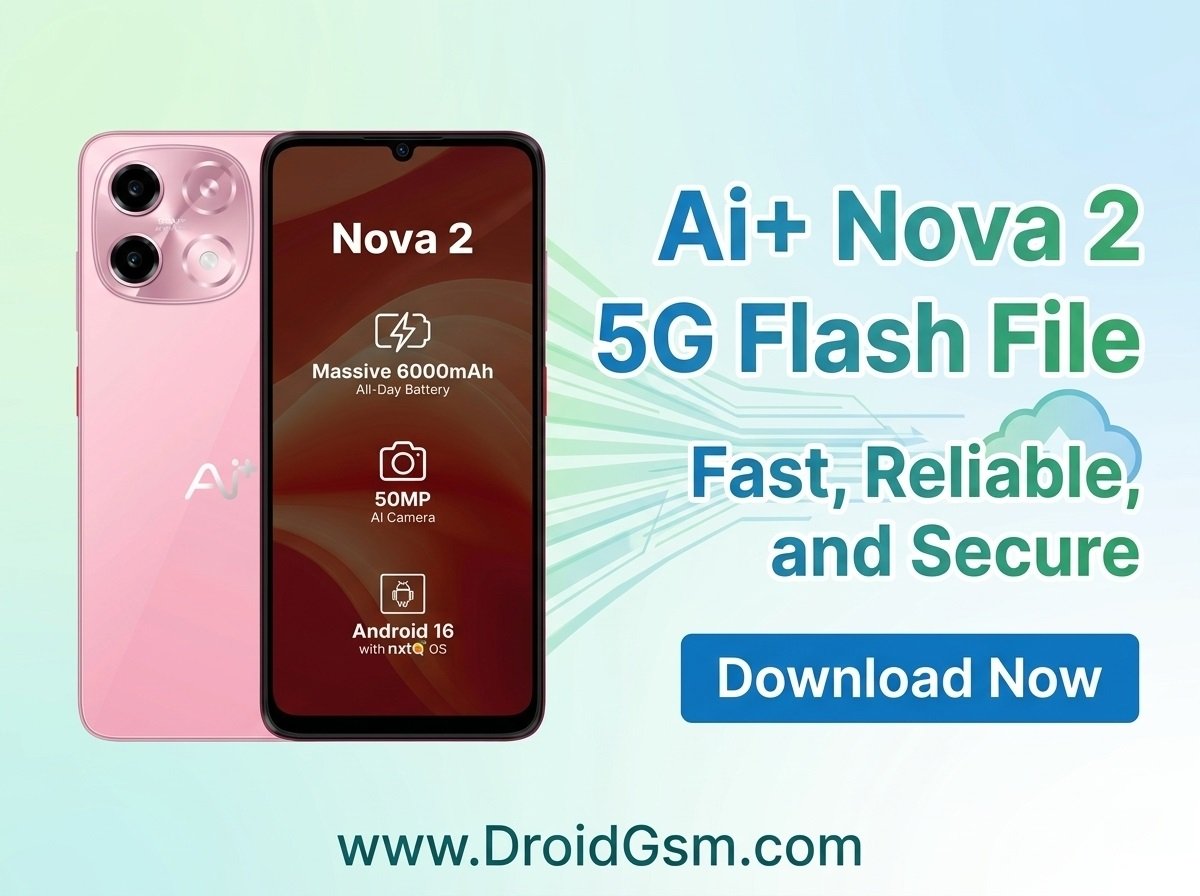
- Battery Power: Massive 6000 mAh Li-Polymer battery for long-lasting power backup.
- Durability: IP64 Dust and Water Resistance certification to guard against everyday liquid splashes.
Important Prerequisites:-
-
- Backup Data:- Flashing will completely erase all internal storage. Backup your data if your data is accessible.
- Charge Battery:- Ensure your battery is charged to at least 50% to avoid unexpected shutdowns mid-process.
- USB Cable:- Use a high-quality, stable USB Type-C cable.
- OS Requirement:- A Windows PC (Windows 10 or 11 recommended).
Required Tools & Downloads:-
The direct download links for all required files are listed at the very bottom of this post.
-
- Official Ai Plus Nova 2 5G Flash File:- The firmware comes packaged as a single
.pacfile format. - Spreadtrum (SPD) / Unisoc USB Drivers:- Necessary for Windows to detect the phone in download/boot mode.
- SPD Upgrade Tool (ResearchDownload):- The official computer program used to push
.pacfiles into Unisoc-powered devices.
- Official Ai Plus Nova 2 5G Flash File:- The firmware comes packaged as a single
Ai Plus Nova 2 5G SW V08 Flash File/Stock Rom
Password:- AiDroidGsmpLUs5G
Step-by-Step Flashing Instructions:-
Step 1:- Install the SPD USB Drivers
-
- Download and extract the SPD Driver pack on your computer.
- Open the driver folder, right-click on the appropriate setup file for your architecture (
DPInst64.exefor 64-bit systems), and select Run as Administrator. - Complete the installation wizard and restart your PC.
Step 2:- Extract the Firmware & Flashing Tool
-
- Extract the Ai Plus Nova 2 5G Flash File/Stock Rom zip package onto an easily accessible folder on your computer. Make sure you see a file ending in
.pacinside. - Extract the SPD Upgrade Tool folder.
- Extract the Ai Plus Nova 2 5G Flash File/Stock Rom zip package onto an easily accessible folder on your computer. Make sure you see a file ending in
Step 3:- Load the Packet (.pac) File
-
- Inside the extracted SPD Upgrade Tool folder, locate and launch ResearchDownload.exe or UpgradeDownload.exe.
- Click on the Load Packet button (represented by a single Gear icon in the top-left corner).
- Browse and navigate to your extracted firmware folder, select the
.pacfile, and click Open. - Wait a minute or two for the tool to parse and fully load the complex system partitions. The text bar at the top will display the firmware version details once successful.
Step 4:- Boot and Connect the Phone
-
- Power off your Ai Plus Nova 2 5G completely.
- Click on the Start Downloading button (represented by the Play icon or arrow) on the tool interface. The tool is now sitting in a listening mode waiting for the connection.
- Press and hold down the Volume Down key (the universal boot key for most modern Unisoc platforms).
- While holding the button down, connect the phone to your computer using the USB cable.
- The tool will instantly recognize the connection and display a progress status bar (such as Downloading FDL1 / FDL2). You can now release the volume button.
Step 5:- Wait for Completion
- Let the tool continue flashing the phone. The status bar will change colors as it overwrites different internal partitions like system, boot, and userdata. Do not bump or unplug the cable.
- Once successful, the status column in the tool will display a green “Passed” message.
- Click the Stop Downloading button (the square stop icon) in the tool before disconnecting anything.
- Unplug your USB cable and hold down the Power Button to turn the phone back on. Note: The first initialization boot can take up to 5 to 10 minutes while NxtQuantum OS rebuilds the user cache.