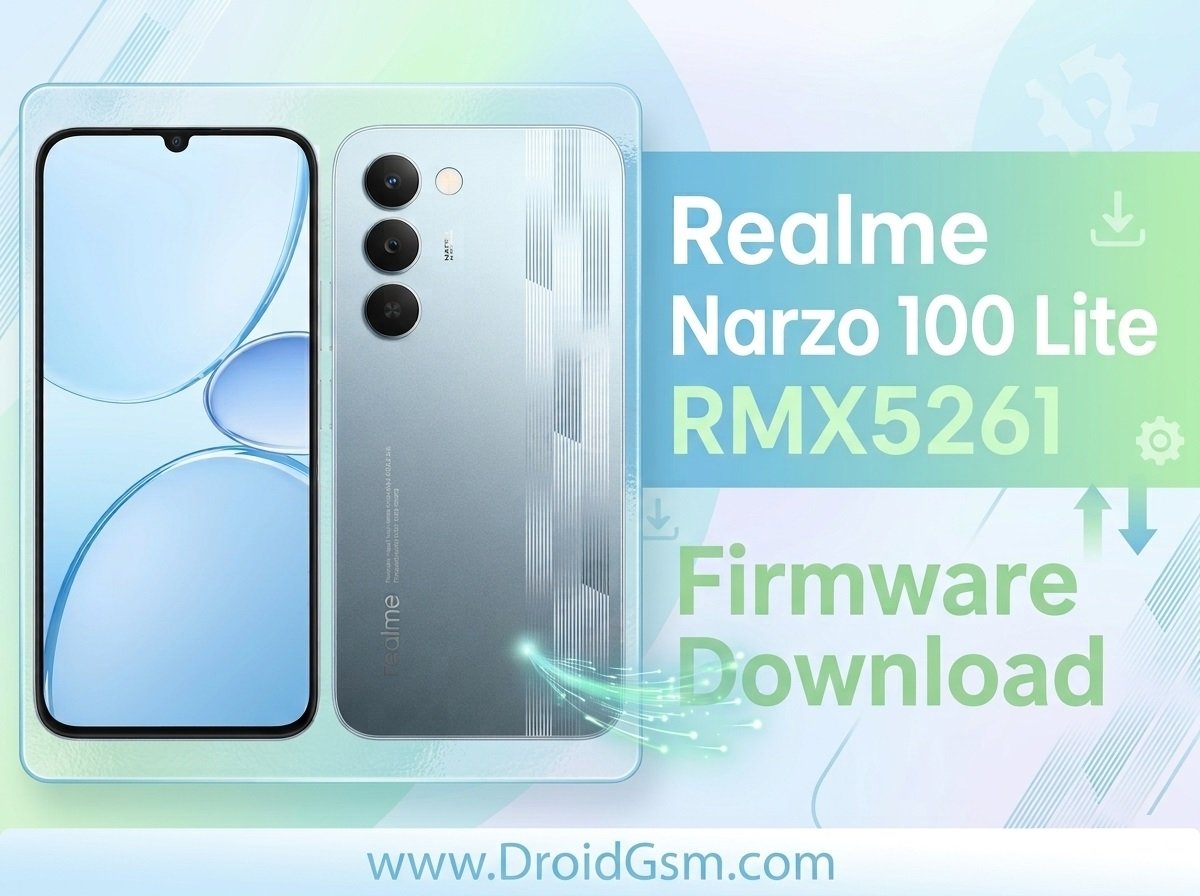
How To Flash Realme Realme Narzo 100 Lite 5G (RMX5261) Stock Firmware
Is your Realme Narzo 100 Lite 5G (RMX5261) encountering severe operating system errors? Flashing the official stock ROM or firmware is the ultimate solution to restore your device.
This guide details the process of using the official flash file to fix common system hitches. These methods can repair problematic issues like severe software lag, infinite boot loops, application crashes, or even a completely bricked handset.
Device Overview & Specifications:-
The Realme Narzo 100 Lite 5G stands out in the budget segment for its extreme endurance and robust build quality. It features structural MIL-STD-810H compliance alongside essential dust and splash proofing.
- Processor:- MediaTek Dimensity 6300 (6nm Octa-core architecture, 2.4 GHz).
- Memory & Storage:- 4GB or 6GB LPDDR4X RAM paired with 64GB or 128GB eMMC 5.1 internal storage (expandable via hybrid slot).
- Display:- 6.8-inch HD+ LCD panel featuring an ultra-smooth 144Hz refresh rate and Panda Glass protection.
- Battery & Power:- Massive 7000mAh Titan Battery supporting 15W charging and bypass/reverse power distribution.
- Cameras:- 13MP main rear sensor (f/2.2) and an 5MP front selfie camera (f/2.2), supporting 1080p video recording.
- Operating System:- Shipped running Android 16 with a custom Realme UI overlay skin.
- Durability & Security:- IP64 dust and water resistance rating combined with a side-mounted physical fingerprint sensor.
Why Flash Stock Firmware?
Reinstalling a clean, original copy of the firmware replaces corrupted core files. This fixes critical errors that standard factory resets cannot resolve, including:-
-
- Fixing Bootloops: Resolves issues where the device fails to pass the initial boot logo animation.
- Removing Severe Bugs: Eliminates operating system hangs, system UI crashes, and battery drain bugs.
- Unbricking the Device: Restores bricked units resulting from incorrect software modifications or interrupted OTA updates.
- Undoing Modifications: Re-locks the bootloader and reverts custom recoveries back to official configurations.
Important Pre-Requisites:-
Flashing is a highly complex process. You must prepare your system using the following steps to avoid hard-bricking your phone:-
-
- Charge the Battery: Keep your phone’s battery capacity above 50% to prevent unexpected blackouts midway.
- Back Up Your Data: Flashing formats your phone’s internal storage. Safely back up your documents, pictures, and contacts beforehand.
- Install Device Drivers: Download and configure the MediaTek (MTK) USB VCOM drivers on a Windows computer so your PC detects the phone.
- Use a High-Quality Cable: Connect using your original, undamaged USB Type-C cable to maintain a steady data connection.
Step-by-Step Flashing Instructions:-
Method 1: Local Update Using System Recovery (For Soft Issues)
If your phone still boots up normally, you can manually push system updates using the local file option.
-
- Download the official firmware package (
.zipformat) directly to your internal storage. - Power off your phone completely.
- Hold down the Power and Volume Down buttons simultaneously until the screen switches into Recovery Mode.
- Select your preferred system language.
- Tap Install from storage device and locate the downloaded update package file.
- Confirm your choice to start the extraction. Keep the phone perfectly still until it reboots into the updated OS.
- Download the official firmware package (
Method 2:- Flashing via PC Flash Tool (For Bootloops & Bricked Devices)
If your device is stuck in an infinite bootloop or cannot start up, you must flash the system via a computer.
-
- Download the dedicated MediaTek SP Flash Tool (or the official Realme Flash Assistant) onto your PC.
- Download and extract the correct Realme Narzo 100 Lite 5G RMX5261 Stock ROM folder on your computer.
- Launch the flash tool utility application on your desktop.
- Locate the Scatter-loading file path box inside the tool, click browse, and select the
.txtAndroid scatter file from your extracted ROM folder. - Power off your Realme Narzo 100 Lite 5G RMX5261 completely.
- Hold down both Volume Up and Volume Down keys together, then plug the phone into the computer using your USB cable.
- Click the Download or Flash button inside the program interface to begin writing the firmware blocks.
- Wait for a green checkmark or a Success prompt to appear before disconnecting your device. Your phone will restart automatically.
Download Firmware File Below:-
Realme Narzo 100 Lite 5G RMX5261 Flash File
Warning Notice:- Only download files designated specifically for the Realme Narzo 100 Lite 5G RMX5261 model. Attempting to install firmware files compiled for different device models will permanently damage your phone’s logic board.