Moto Edge 60 Fusion (Model XT2503-2) FRP Remove UMT Mtk Pro
This comprehensive guide provides the step-by-step procedure to remove the Factory Reset Protection (FRP) lock on the Moto Edge 60 Fusion (Model XT2503-2) using Ultimate Multi Tool (UMT) MTK Pro. When a Motorola device running on a MediaTek (MTK) chipset gets stuck on the Google Account verification screen after a hard reset, flashing a modified LK (Little Kernel) image allows the service tool to bypass secure authentication and clear the lock partition.
Specifications for the Moto Edge 60 Fusion (XT2503-2):-
-
- Processor:- MediaTek Dimensity (MTK architecture) MediaTek Dimensity 7400 chipset
- Display:- 6.7-inch pOLED screen with a 144Hz refresh rate
- Rear Camera:- Triple camera setup featuring a 50MP main sensor
- Front Camera:- 32MP selfie camera
- Battery & Charging:- 5000mAh battery with 68W TurboPower fast charging
- Operating System:- Ships with Android 15 / 16 (depending on region and update tier)
- Biometrics:- In-display fingerprint sensor
Prerequisites & Requirements:-
Before beginning the process, ensure you have gathered all the necessary software components:-
-
- Hardware Tool:- UMT Dongle or UMT Pro Box with an active subscription.
- Software Module:- UltimateMTK (UMT MTK Pro) application.
- Drivers:- Latest MediaTek (MTK) USB Drivers and Motorola Mobile Device Drivers installed on your PC.
- Hardware Link:- A high-quality USB data cable.
- Device Status:- Battery charged to at least 50% to prevent unexpected shutdowns during execution.
Step-by-Step Fastboot FRP Removal Procedure:-
Follow these specific instructions to manually flash the custom LK image file and wipe the FRP flag using Fastboot Mode:
Step 1:- Extract the Partition Image File
-
- Download the custom Moto XT2503-2 LK Image zip file using the official mirror link provided at the bottom of this article.
- Extract the file contents (
lk.img) to a dedicated folder on your computer desktop.
Step 2:- Boot the Moto Edge 60 Fusion into Fastboot Mode
-
- Turn off your Moto Edge 60 Fusion completely.
- Press and hold the Volume Down and Power buttons simultaneously.
- Release the keys as soon as you see the black Motorola bootloader screen displaying Fastboot Mode status along with technical device info.
- Plug the USB cable into the phone and connect it to your PC.
Step 3:- Configure UMT MTK Pro for Fastboot
-
- Open the UltimateMTK tool dashboard.
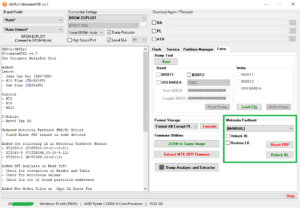
- Navigate to the Fastboot / Motorola Functions tab located in the tool interface.
- Click on Read Info (Fastboot) to check connection stability. The log window should correctly recognize your phone as
XT2503-2. - Look for the Manual Flash / Partition Flashing section inside the Fastboot module.
- Check or highlight the LK Partition checkbox.
- Click the directory button next to it, browse to your desktop folder, and load your downloaded
lk.imgfile.
Step 4:- Flash the Custom LK Image & Erase FRP
-
- With the file loaded and the device verified in Fastboot, click the Write Partition or Flash LK button.
- The software will execute a fastboot protocol command to overwrite the security block with the raw kernel code. Wait until the terminal log prompts a success status.
- Once flashed, look for the service operation button labeled Reset FRP (Fastboot) or Erase FRP under the same module toolbar.
- Click Execute. The tool will use the newly flashed LK image environment to format the persistent configuration block where Google credentials are saved.
- Keep the phone steady until the execution box registers a “Reset FRP… OK” confirmation message.
Step 5:- Final Reboot
- Once the process completes successfully, phone will Reboot automatically, or select “Start” on the phone screen using the Volume keys and press the Power button to confirm.
- The device will reset and boot to the system initialization wizard.
- Advance through the configuration menus. When prompted for the Google Account, click the newly activated Skip / Set up offline option to enter the home screen.
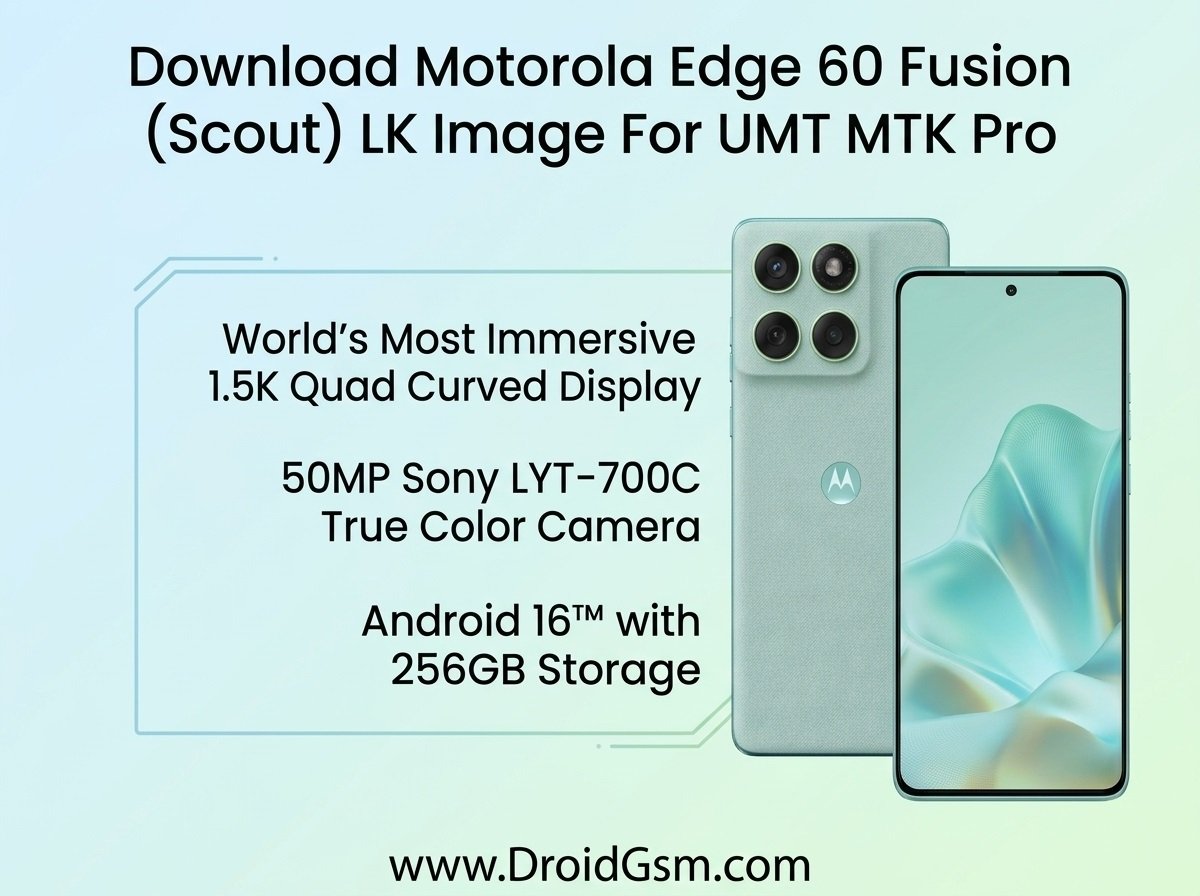
Download Motorola Edge 60 Fusion (Scout) LK Image
RETIN XT2505-2 SCOUT RETIN 15 V2VCS35.33-132-6-1
RETIN XT2503-2 SCOUT RETIN 16 W1VCS36H.14-20-19-7
Password:- MoToEdGE60DroidGsmFuSion
Do At Your Own Risk:- Flashing custom files like the
lk.img carries an inherent risk of permanently damaging (bricking) your phone.