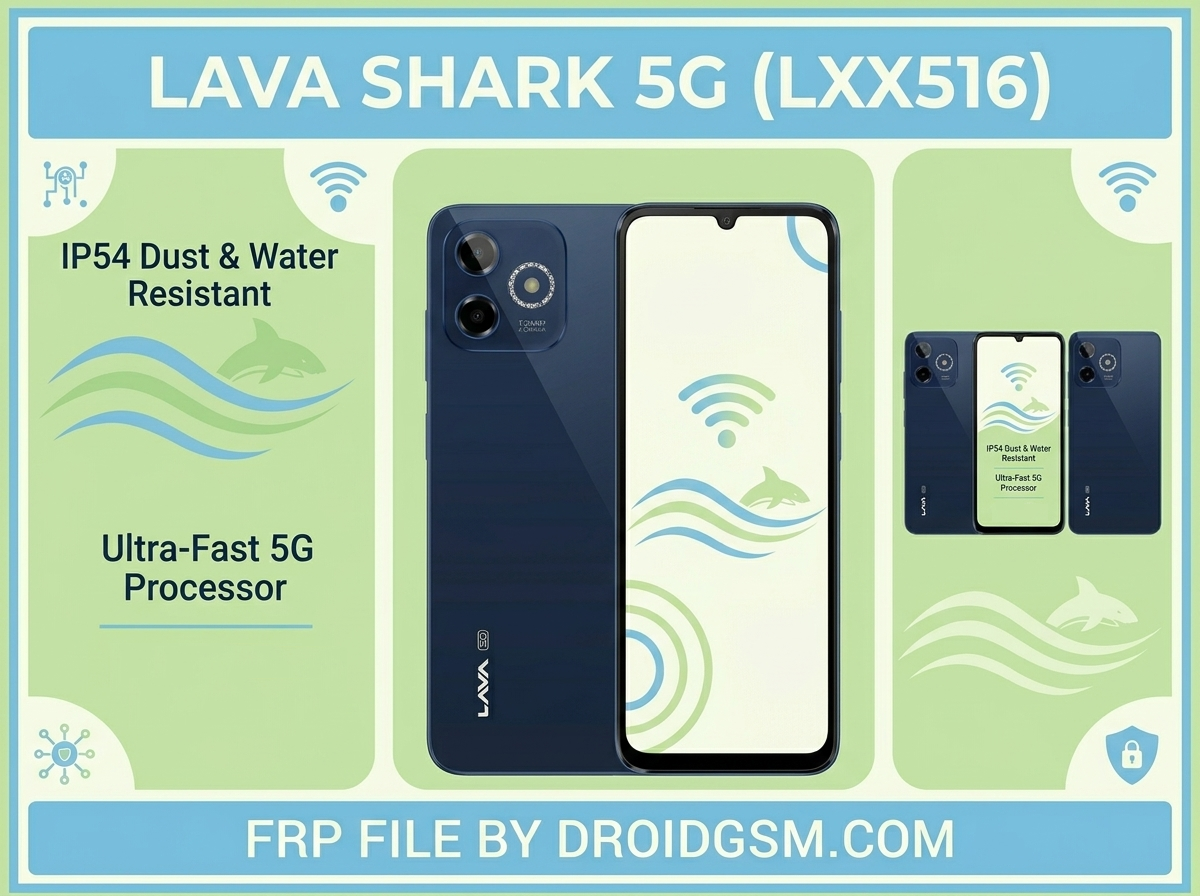
Lava Shark 5G (LXX516) Factory Reset Protection (FRP) Remove File
Factory Reset Protection (FRP) is a security feature on Android 15 designed to prevent unauthorized access to the Lava Shark 5G (Lava LXX516) after a factory reset. If you are locked out of your device following a hardware reset, this technical reference manual outlines the hardware specifications, required toolsets, and the precise partition-flashing procedure to safely clear the architecture’s security flags.
Lava Shark 5G (Lava LXX516) Technical Specifications:-
Before proceeding, ensure your hardware matches the exact configuration listed below. Flashing files meant for a different CPU architecture can permanently brick the device.
The Lava Shark 5G (Model Number: Lava LXX516) operates on a Unisoc T765 Octa-Core system on chip built on a 6nm architecture. The device runs the Android 15 operating system layer out of the box and features high-speed UFS 2.2 internal storage. Hardware-level diagnostic communication is established via the standard SPRD U2S Diag or Unisoc COM Port interface protocol.
Prerequisites & Environmental Setup:-
To perform an FRP configuration wipe on a Unisoc platform, you must establish a secure hardware-to-software communication interface.
1. Required Tools & Files:-
-
- Unisoc Flashing Tool:- Use a verified service utility supporting the Unisoc T765 platform (e.g., SPD Upgrade Tool, Research Download Tool, or authorized multi-brand service platforms).
- Device Driver Pack:- Install the official Spreadtrum/Unisoc USB Driver package on your Windows workstation.
- Target Configuration File:- The Lava LXX516 FRP Remove File (typically structured as a scatter configuration or a standalone clean
persistent.img/frp.imgpartition block file).
2. Workplace Configuration:-
-
- Ensure the host workstation is running stable USB 2.0 or USB 3.0 ports.
- Charge the Lava Shark 5G battery to at least 50% to avoid a power failure mid-flash.
- Use a high-quality, high-speed USB-C data cable.
Step-by-Step FRP Removal Procedure:-
The FRP lock status on Android 15 is governed by security flags written directly to a dedicated device partition block (labeled
persistent or frp). Overwriting or clearing this block resets the state.Lava Shark 5G (LXX516) FRP Remove File And Tool
Password:- LavaDroidGsm.comLXX516
Step 1: Initialize the Workstation Software:-
-
- Launch your Unisoc service utility or flashing tool with administrative privileges on your computer.
- Load the firmware platform pack or scatter configuration mapping file specific to the Lava Shark 5G (LXX516).
- In the partition configuration matrix, locate the entry designated as
persistent(orfrp). - Direct the source path for that specific partition to point to your downloaded clean FRP remove file. Ensure all other operational partition boxes are unchecked to avoid modifying systemic OS data.
Step 2: Establish Boot ROM / Download Mode Hardware Connection:-
Unisoc chipsets require a specific physical key combination to disrupt standard boot sequences and open the preloader diagnostic port.
-
- Power down the Lava Shark 5G completely and wait roughly 10 seconds for the storage blocks to de-energise.
- Press and hold both the Volume Up and Volume Down physical buttons simultaneously.
- While continuing to compress both volume keys, plug the USB-C data cable from your computer into the device.
Step 3: Flash execution and Port Verification:-
-
- Release the volume keys immediately once your computer generates a hardware connection tone.
- Check your Windows Device Manager under Ports (COM & LPT). You should see an active listing for SPRD U2S Diag or Unisoc USB Serial Port.
- Click the Start or Flash button in your service software.
- The software will locate the opened diagnostic port, initialize communication protocol with the Unisoc T765 SoC, and overwrite the targeted partition.
- Wait for the operational progress bar to turn green and display a clear status log such as
PASSED,SUCCESS, orWrite OK.
Step 4: System Initialization:-
-
- Safely unplug the USB cable from your phone.
- Long-press the Power Button for approximately 10–15 seconds to force a clean system hardware cycle.
- Once the Lava boot animation sequence finishes, the system will launch into the Out-of-Box Experience (OOBE) setup screen.
- Progress through the standard initialization prompts. The device will now allow you to select “Skip” on the Google Account Verification screen, granting access to the home screen layout.
Critical Safety Troubleshooting:-
-
- Device Status Stuck on Boot: If the device boot-loops, re-enter the recovery menu using the Power + Volume Up sequence and execute a standard “Wipe Data / Factory Reset” to re-align storage cache blocks.
- Port Disconnections: If the flashing utility returns an error message like Failed to Open Port, clean your USB port, reinstall the Spreadtrum COM drivers, and use a dedicated USB 2.0 port on the back panel of your computer.