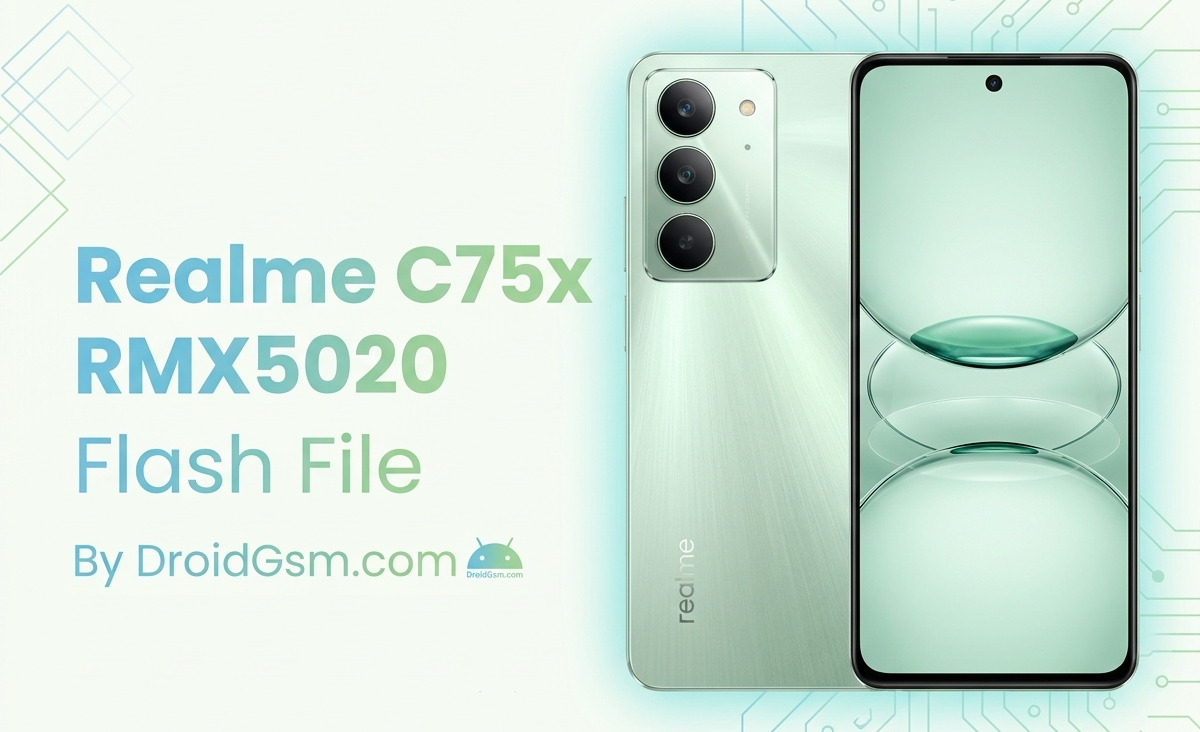
Realme C75x (RMX5020) Flashing
If your Realme C75x (Model RMX5020) is struggling with software issues like stuck bootloops, system lag, application crashes, or an entirely black screen (dead boot), flashing the stock firmware is the ultimate solution. Installing the official flash file completely overrides corrupt system files and restores your device to factory settings.
🛠️ Realme C75x (RMX5020) Core Specifications:-
Before initiating the flashing process, it is critical to verify your device variant to ensure full hardware compatibility. The core technical specifications of the Realme C75x 4G (RMX5020) include:-
Key Specifications:-
- Display: 6.67-inch screen
- Processor: MediaTek Helio G81 Ultra or MT6768-based platform
- Battery: ~5,600 mAh capacity with 45W wired charging
- Software: Realme UI based on Android
- Main Camera: 50 MP rear camera
📥 Pre-Requisites for Flashing:-
Do not rush into installing the firmware. Ensure you have gathered all necessary tools and backed up vital information:-
-
- Backup Data: Flashing will completely wipe the internal storage. Backup all pictures, contacts, and personal documentation.
- Battery Charge: Maintain at least 50% to 60% battery capacity to prevent the phone from powering off mid-process.
- High-Quality USB Cable: A stable connection is required. Use an original or highly reliable OEM USB data cable.
- PC/Laptop: Running Windows or Linux operating systems.
Required Software Packages:-
-
- Official Flash File: Download the matching package variant (e.g.,
RMX5020export_11_15.0.0.750EX01or similar region-specific software). - USB Drivers: Download and install the MediaTek (MTK) USB Drivers onto your computer to ensure proper hardware communication.
- Flashing Tool: Depending on your file build, use the SP Flash Tool or the official MSM Download / Realme Flash Tool.
- Official Flash File: Download the matching package variant (e.g.,
🚀 Step-by-Step Flashing Instructions:-
Follow these instructions carefully. Any deviation can result in temporary bricking.
Step 1:- Extract the Firmware Components
Download the compressed firmware file zip onto your computer. Extract it using a utility tool (like WinRAR or 7-Zip). Inside the extracted folder, you will find the Flash File, Flash Tool, and USB Drivers.
Step 2:- Install MediaTek USB Drivers
Open the driver folder and execute the installation setup file. If you already have working MTK drivers installed on your computer, you can skip this process. [1, 2]
Step 3:- Configure the Flash Tool
-
- Launch the SP Flash Tool (
flash_tool.exe) from its extracted folder. - Click on the Scatter-loading selection button.
- Browse the extracted firmware folder, locate the Android scatter log file (
MT6768_Android_scatter.txt), and select it. - Uncheck the Preloader file option to mitigate any risks of deep bricking (recommended unless the device is completely dead).
- Launch the SP Flash Tool (
Step 4:- Establish Connection and Flash
-
- Tap the Download button located at the top of the SP Flash Tool interface.
- Completely power off your Realme C75x.
- Press and hold both the Volume Up and Volume Down buttons simultaneously.
- While holding the volume keys, plug the USB cable from the PC into your mobile device.
- The flash tool will recognize the device, change status bars to red/yellow, and begin the flashing process. Release the volume keys once the progress bar moves.
Step 5:- Finalizing the Boot
Once the installation finishes, a green checkmark indicating Download OK will appear on the application window. Disconnect the USB cable safely and turn on your phone. Note that the first initialization boot after a factory flash can take anywhere from 5 to 10 minutes.