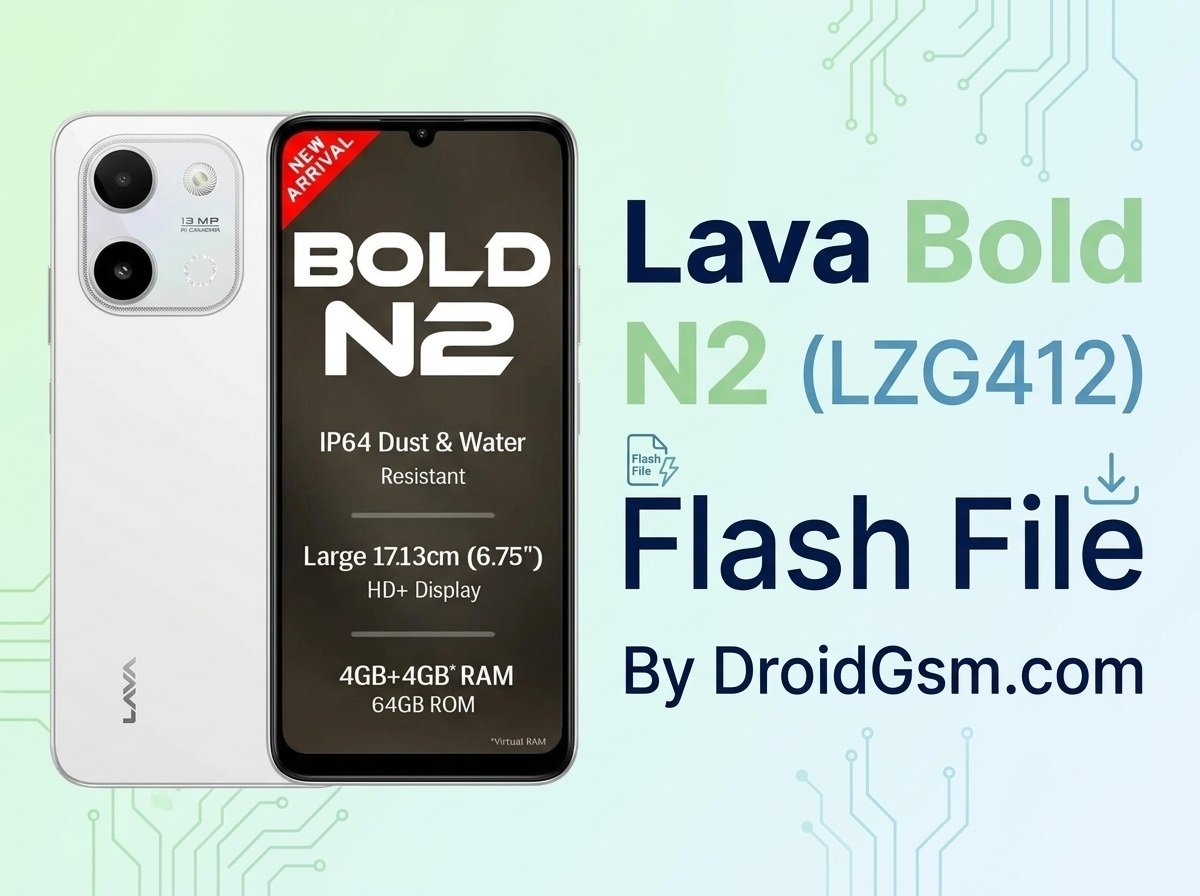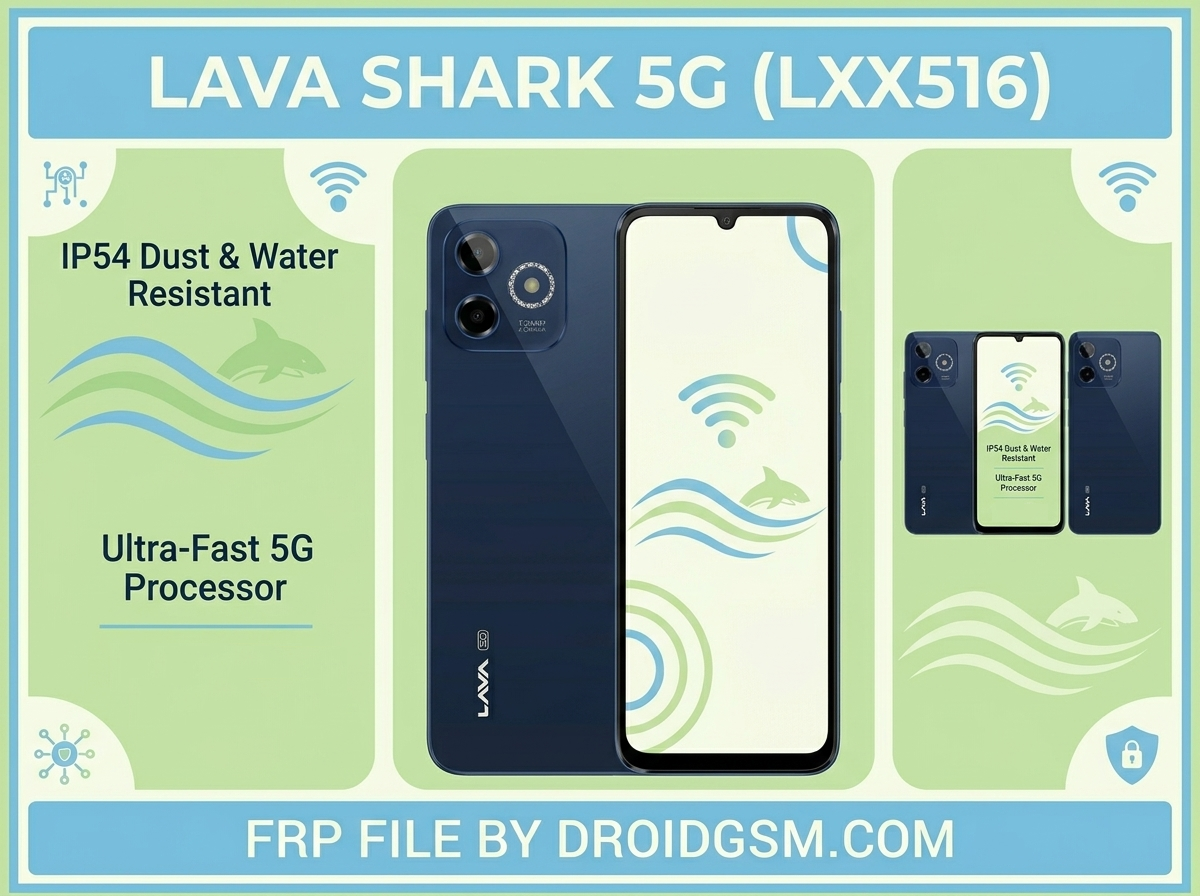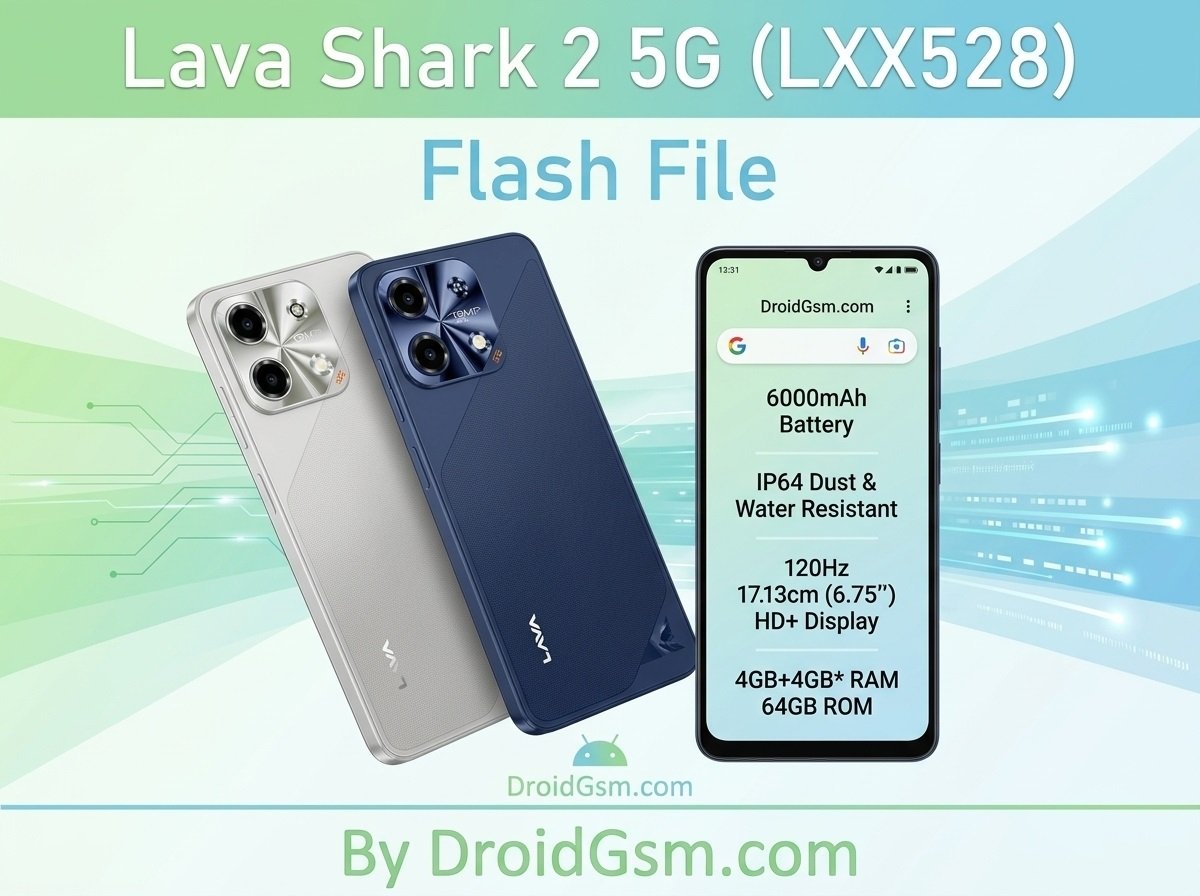
Lava Shark 2 5G (LXX528) Flashing Guide
If your Lava Shark 2 5G (LXX528) is facing software problems, stuck in a boot loop, lagging, or locked by a Google Account (FRP lock), flashing the official stock firmware is the ultimate fix.
This comprehensive guide covers everything you need to know about setting up the Lava Shark 2 5G (LXX528) firmware, utilizing the correct flashing tools, and executing the flashing procedure safely.
Why Flash Your Lava Shark 2 5G (LXX528)?
Flashing the official stock ROM overrides your device’s core system partitions to completely eliminate persistent software faults. It repairs:
-
- Boot Loops & Hanging:- Devices frozen on the Lava boot logo.
- FRP Lock Bypass:- Quickly unlocks the device if you have forgotten your Google account credentials after a hard reset.
- System Crashes:- Eradicates frequent system UI errors and unresolvable malware infections.
- Unbricking:- Recovers dead devices caused by corrupt over-the-air (OTA) updates or faulty third-party root attempts.
Lava Shark 2 5G (LXX528) Phone Specifications:-
-
- Model Number: Lava LXX528 (Shark 2 5G)
- Processor: Unisoc T8200 Octa-Core (6nm Architecture)
- Display: 6.75-inch HD+ LCD with a 120Hz Refresh Rate
- Operating System: Android 16
- RAM & Storage: 4GB LPDDR4X RAM with 64GB Internal Storage
- Rear Camera: 13 MP AI Dual Rear Camera
- Front Camera: 5 MP Selfie Camera
- Battery: 6000 mAh capacity with 18W Fast Charging
Prerequisites & Downloads:-
Before initiating the flashing sequence, make sure your computer is properly configured.
Critical Precautions:-
-
- Charge Battery: Keep your phone charged to at least 50% to prevent unexpected shutdowns mid-process.
- Backup Data: Flashing formats the internal storage entirely. Secure your files beforehand.
- Original Cable: Use a high-quality USB data cable.
Step-by-Step Flashing & FRP Removal Guide:-
Step 1:- Install Drivers and Extract Files
-
- Download all the packages from the links above onto your Windows computer.
- Extract the Unisoc USB Driver folder and install the appropriate architecture setup (
x86orx64). - Extract the SPD Flash Tool and the Lava Shark 2 5G Firmware Archive to an easy-to-find location (e.g., your Desktop).
Step 2:- Configure the Flash Utility
-
- Open the extracted flashing tool directory and launch ResearchDownload.exe or UpgradeDownload.exe as an administrator.
- Once the application UI loads, click on the Gear icon (Load Packet) situated in the top-left corner.
- Browse to your extracted firmware directory, select the specific firmware file ending in the
.pacextension, and click Open. Wait a few minutes for the utility to load the system images fully.
Step 3:- Connect the Device in Flash/Boot Mode
-
- Power off your Lava Shark 2 5G completely.
- Press and hold down both the Volume Up and Volume Down buttons simultaneously.
- While continuing to press those buttons, insert your USB cable connected to the computer.
- Release the buttons immediately once your computer plays a connection chime, meaning the Unisoc device driver has engaged.
Step 4: Execute the Firmware Write
-
- Click the Play button (Start Downloading) within the tool interface.
- The flashing layout will update with active progress bars highlighting areas like
Bootloader,System, andUserdata. - Do not disturb the cable connection under any circumstances while this runs.
- When done, a green status banner reading “Passed” or “Finish” will appear. Click the Stop button (Square icon) and unplug your phone. Turn it on; the first startup can take up to 5-10 minutes.
Lava Shark 2 5G LXX528 V07 Flash File & Tool
Password:- LaVaDroidGsmLXx528
Back up your data and charge your battery before starting.
Proceed at your own risk:- Downgrading/Upgrading firmware can permanently brick (kill) your phone if interrupted or if the wrong file is used. A dead device will not power on and requires a motherboard replacement at an authorized service center. DroidGsm.com assumes zero responsibility for any device damage, data loss, or repair costs.