Redmi 17 5G / 15A 5G / POCO C85x 5G / A7 Pro 5G “Somalia”
Complete Guide to Flashing the “Somalia” Unified Flash File (Redmi 17 5G, Redmi 15A 5G, POCO C85x 5G, & A7 Pro 5G)
If your phone is frozen, stuck on the boot logo, lagging, or infected with software bugs, flashing a fresh copy of its operating system (called a Stock ROM) can make it run like new again.
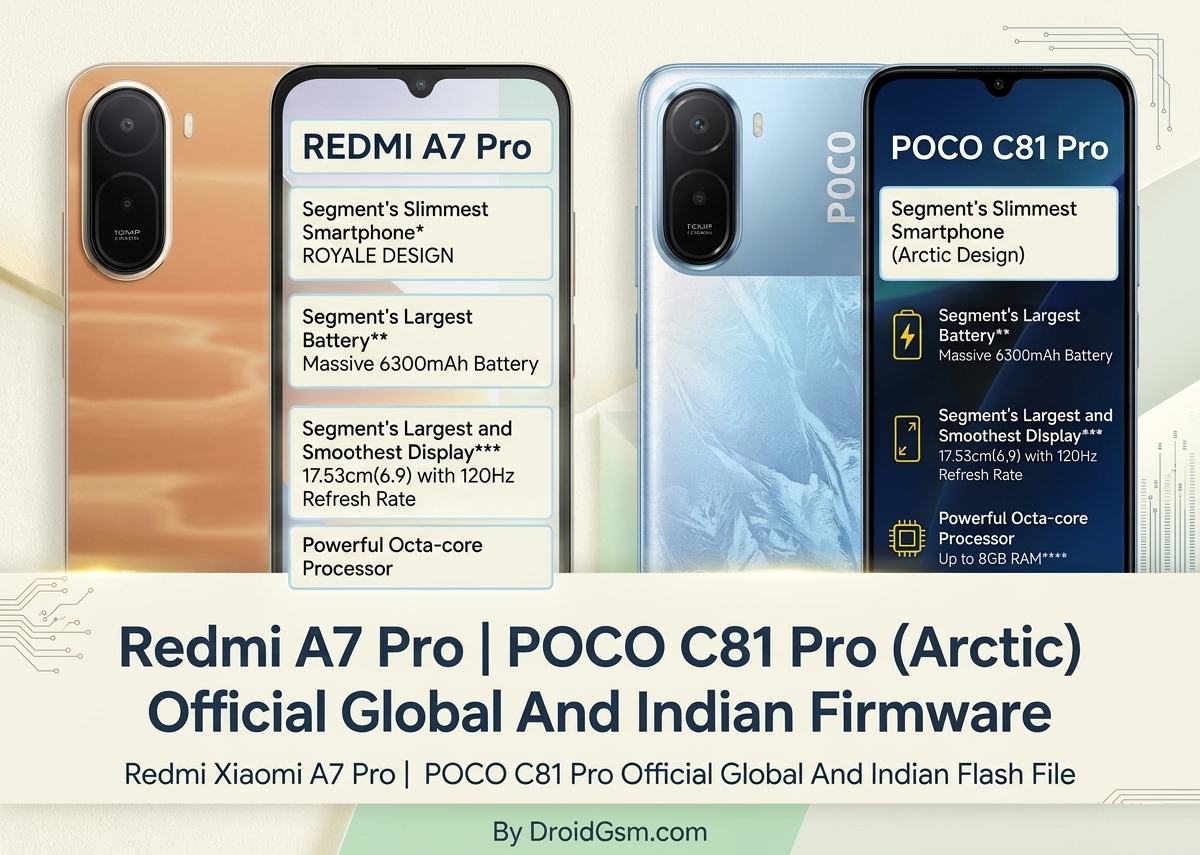
Xiaomi frequently builds smartphones that share the exact same internal hardware but are sold under different names. Devices like the Redmi 17 5G (R70m), Redmi 15A 5G, POCO C85x 5G, and Redmi A7 Pro 5G all share the same inner blueprint, collectively codenamed “somalia”. Because they share the same hardware foundation, they use the exact same unified official HyperOS flash file.
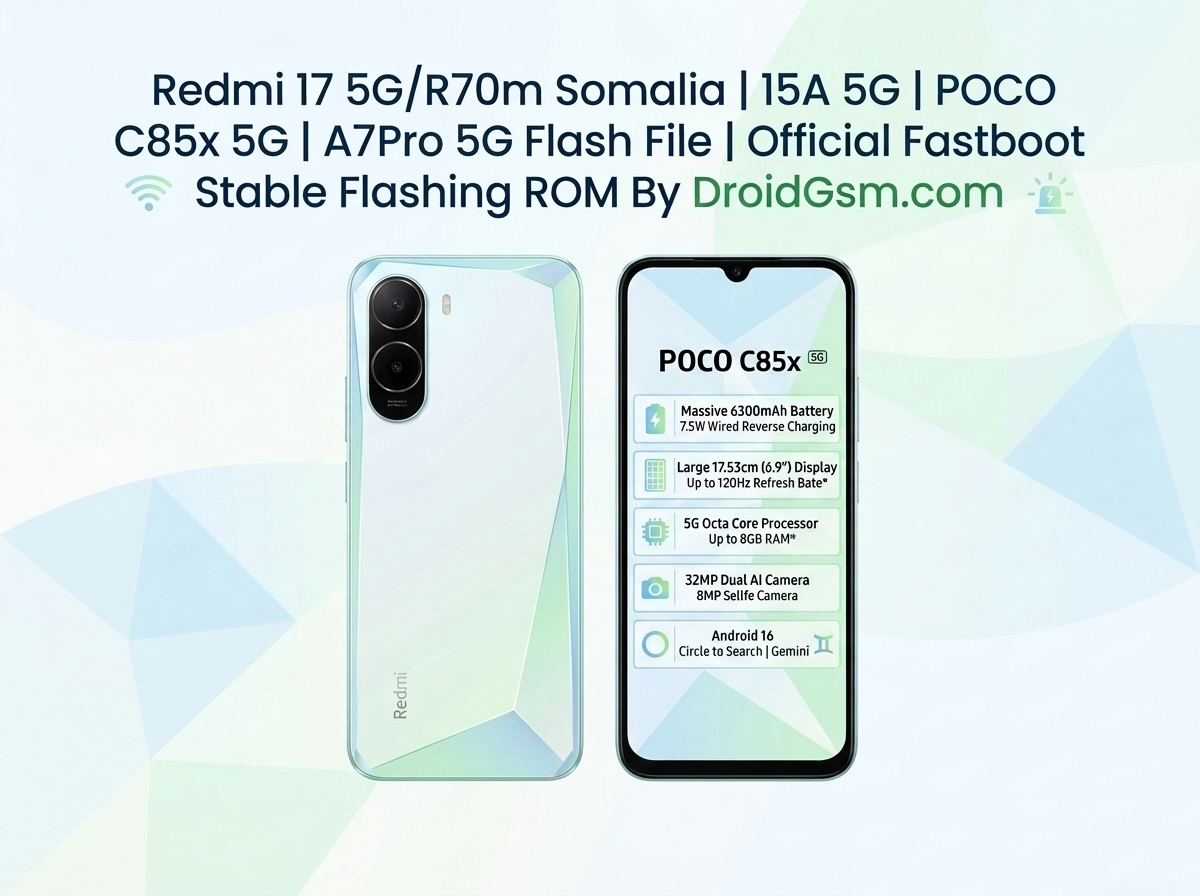
Here is the quick summary of the specifications for the “somalia” devices (Redmi 17 5G / 15A 5G / POCO C85x 5G / A7 Pro 5G)
-
- 📱 Screen: 6.9-inch smooth 120Hz display.
- ⚙️ Chip: Unisoc T8300 5G processor.
- 💾 Storage: 4GB/6GB RAM and 64GB/128GB space (expandable up to 1TB).
- 🔋 Battery: Huge 6,300 mAh battery with 15W charging.
- 📸 Cameras: 32 MP main back camera and 8 MP selfie camera.
- 🔌 Extras: Side fingerprint scanner, headphone jack, and Xiaomi HyperOS.
What is a Flash File and Why Do You Need It?
A flash file (also called a Stock ROM or Firmware) is the complete package containing the official operating system, core software instructions, and system files created by the manufacturer.
Flashing this file onto your phone completely replaces the old system code. This is incredibly helpful if you need to:-
-
- Fix a Bootloop: This happens when your phone is stuck in a loop, restarting over and over at the logo screen.
- Recover from a Brick: A “bricked” phone is completely unresponsive. Reflashing the firmware can wake a dead phone back up.
- Remove Software Bugs or Viruses: If a stubborn virus or system glitch won’t go away, clearing the system partition wipes it completely.
- Un-modify or Downgrade: If you tried out a custom operating system and want to return to the official factory settings, this file restores the original software.
Fastboot ROM (.TGZ File):-
-
- What it is:- A deeper, raw system installation package.
- How to use it:- You must use a computer, a special USB cord, and software like the Mi Flash Tool.
- Best for:- Repairing severely glitched, frozen, or bricked devices.
-
Important Things to Do Before You Begin:-
Flashing your phone carries a small risk of permanently damaging your device if done incorrectly. Protect your device by following these critical steps first:
-
- Charge Your Battery:- Ensure your phone has at least 50% battery life so it does not power down in mid flashing process.
- Back Up Your Data:- Flashing a Fastboot ROM clears the phone completely. Save your pictures, text messages, and important contacts to a computer or cloud account first.
- Unlock Your Bootloader:- To install a Fastboot ROM, your phone’s digital security gate (the bootloader) must be unlocked via Xiaomi’s official unlocking tool.
- Install Phone Drivers:- Download and install the Xiaomi USB Drivers on your Windows computer so the PC can easily talk to your phone.
OS3.0.9.0.WBWINXM (India) Stable Fastboot ROM Android 16
OS3.0.10.0.WBWCNXM (China) Stable Fastboot ROM Android 16
How to Flash the Fastboot ROM Using a PC/Laptop:-
If your device needs a complete system refresh, follow these steps to clean-flash your firmware:
-
- Download the Flash File:- Grab the official Fastboot ROM (.tgz extension) matching your device’s region (such as the Indian or Global versions available)
- Extract the Package:- Use software like 7-Zip or WinRAR to extract the downloaded
.tgzfile onto your computer. Move the extracted folder directly to your local disk drive (e.g.,C:\) for a short, clean file path. - Open Mi Flash Tool:- Download, install, and open the official Mi Flash Tool on your computer.
- Boot Your Phone Into Fastboot Mode:- Turn your phone completely off. Press and hold both the Volume Down button and the Power button at the same time until the Fastboot logo appears on the screen.
- Connect to Your PC:- Plug your phone into the computer using a reliable USB cable.
- Load the File in Mi Flash:- In the Mi Flash Tool software, click the “Select” button and browse to the extracted firmware folder.
- Detect the Phone:- Click the “Refresh” button in Mi Flash. Your phone should pop up as a unique serial number string in the device list.
- Choose Your Flashing Method:- At the very bottom of the tool, look closely at the configuration choices:
-
- Clean All:- Highly recommended. Clears your data and installs a fresh system.
- Clean All and Lock:- Clears data and locks your bootloader security gates back up.
-
- Begin Flashing: Click the “Flash” button. Keep the phone perfectly still and do not unplug the cable. The process takes roughly 3 to 8 minutes. Once it completes, the tool status will say “Success” and your phone will reboot automatically into its brand-new operating system!