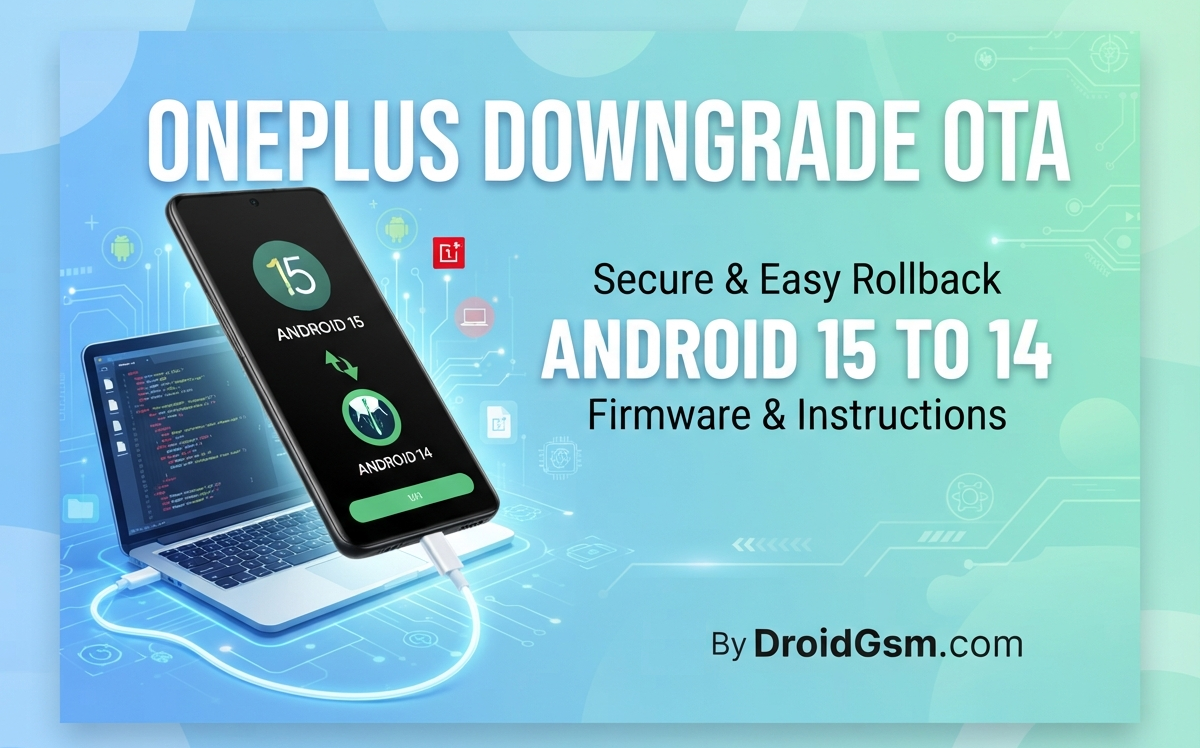
How to Downgrade OnePlus from Android 15 to Android 14 (OxygenOS 15 to 14 Rollback Guide)
Rolling back your software is the most effective solution if you are experiencing severe battery drain, application incompatibility, or system instability after updating your OnePlus device to Android 15 (OxygenOS 15).
This comprehensive guide outlines the official local installation steps required to safely return your device to Android 14 (OxygenOS 14), details the inherent risks of device damage or bricking, and provides the necessary rollback resource locations.
⚠️ Critical Risks:- Device Damage and Brick Hazards
While performing an official rollback is a structured process, it interacts deeply with your device’s core firmware. You must understand the risks before proceeding:-
-
- Complete Data Loss:- The rollback package automatically triggers a mandatory factory reset. Every piece of data on your phone will be permanently erased, including photos, text messages, app data, and local files.
- The “Hard Brick” Risk (Anti-Rollback Protection):- OnePlus implements hardware-level Anti-Rollback Protection (ARB) on specific security patches. If your device has updated to a security firmware tier that strictly forbids older software, forcing a downgrade via third-party recovery or modified tools can permanently damage (“hard brick”) the motherboard. Always verify that you are using a verified rollback package matching your model variant and region.
- Power Failure Interruption:- If your phone runs out of battery or forces a restart midway through the local upgrade extraction, the partition table will corrupt. This causes a boot loop where the phone cannot load either operating system. Ensure your device is charged to at least 60% before starting.
- Network & Fingerprint Glitches:- Occasionally, rolling back via local installation without clearing system cache can cause temporary baseband mismatches, leading to degraded cellular reception or an unresponsive under-display fingerprint sensor until another network reset is performed.
📋 Prerequisites Before You Start:-
-
- Perform a Full Backup:- Move all critical files, documents, and media to an external computer or cloud storage platform. Do not save backups to the internal storage of the phone you are downgrading.
- Identify Your Region Code:- Open your phone dialler and enter *#6776# to view your exact software configuration.
-
- IN represents India
- EU represents Europe
- NA represents North America
- GLO represents Global
-
- Verify File Extension:- Ensure your downloaded rollback package ends strictly with a .zip extension. If your browser appended .jar to the end of the file name, rename the file to remove .jar before proceeding.
🛠️ Step-by-Step Installation Instructions:-
Step 1:- Enable Developer Options
-
- Open Settings on your OnePlus device.
- Scroll down and navigate to About Device > Version.
- Tap on the Build Number 7 times continuously until a prompt states “You are now in Developer Mode”.
Step 2:- Position the Rollback Package
-
- Connect your phone to your PC or use a local file manager app.
- Locate the downloaded Android 14 rollback .zip package.
- Move or copy this file directly to the Root Directory of your internal phone storage (this means placing it directly inside the main phone storage folder, not inside subfolders like Download or Documents).
Step 3:- Execute Local Installation:-
-
- Go back to Settings > About Device.
- Tap on the OxygenOS banner block located at the top of the interface.
- Tap the three vertical dots icon positioned in the top-right corner.
- Select the Local Install option. (Note: If this option is greyed out, disable your Wi-Fi and Mobile Data, navigate to App Management, clear the data for the “Software Update” system app, and try again).
- Browse and select the rollback
.zipfile you placed in the root directory. - Review the system warning prompt, click Install Now / Upgrade, and wait for the extraction bar to reach 100%.
- Once completed, tap Restart. The device will reboot, wipe its internal memory, and boot directly into the factory-fresh Android 14 welcome wizard.
(Note for North American / NA Users: If the native Local Install option does not display on your regional build firmware, you must download and install the standalone OnePlus Local Update Tool APK to manually trigger and browse for the rollback package).
Download OnePlus Android 15 to Android 14 (Roolback) Downgrade Packages
OnePlus 10 Pro
OnePlus 10R
OnePlus 10T
OnePlus 11
OnePlus 11R
OnePlus 12
OnePlus 12R
OnePlus Nord 3
OnePlus Nord CE 3 5G
OnePlus Nord CE 3 Lite 5G
OnePlus Nord 4
OnePlus Nord CE 4
OnePlus Nord CE 4 Lite
OnePlus Pad
OnePlus Pad 2
OnePlus Open
⚠️ DISCLAIMER:- PROCEED AT YOUR OWN RISK
- Brick Risk:- Downgrading firmware can cause permanent software corruption (“hard brick”). Your device may become completely dead and unresponsive.
- Warranty Void:- Any damage or boot loops are your sole responsibility. Repairs at OnePlus service centers may require out-of-pocket payment.
- No Liability:- This guide is for educational purposes only. The author accept no liability for data loss or device damage.