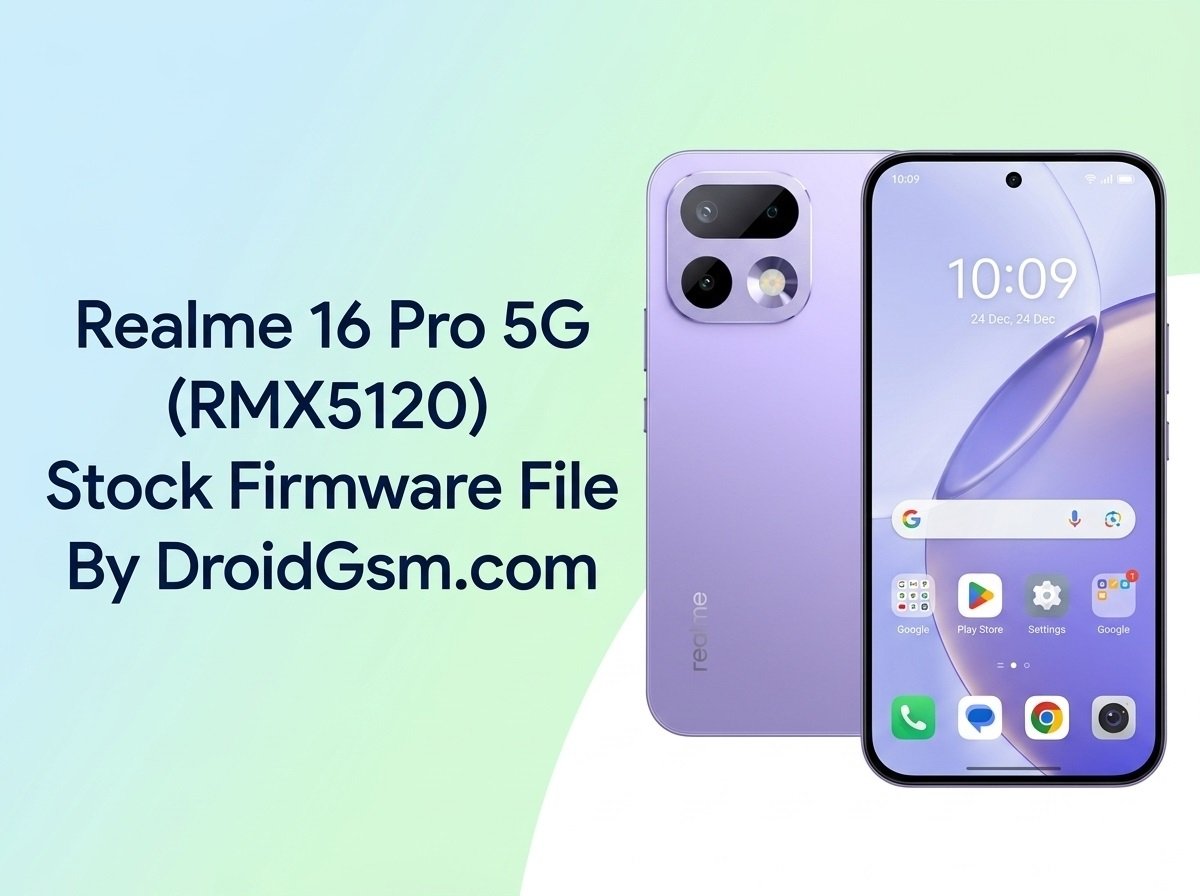
How to Flash Realme 16 Pro 5G (RMX5120) Stock Firmware
Fix Software Issues Is your Realme 16 Pro 5G (RMX5120) running slowly, stuck on the boot loop logo, or facing frequent system crashes? Flashing the official stock firmware file is the most effective way to repair these deep-seated software glitches.
This technical guide walks you through the step-by-step process of installing the official stock flash file to restore your device back to original factory conditions.
Realme 16 Pro 5G (RMX5120) Device Specifications:-
Before starting the flashing procedure, confirm your hardware aligns with the standard device configurations:-
Here are the quick specifications for the Realme 16 Pro 5G (RMX5120):-
-
- Display: 6.78-inch Curved AMOLED, 144Hz refresh rate.
- Processor: MediaTek Dimensity 7300 Max (4nm).
- Memory: 8GB / 12GB RAM | Up to 512GB Storage.
- Rear Camera: 200MP Main (with OIS) + 8MP Ultra-wide.
- Front Camera: 50MP Selfie lens.
- Battery: 7,000mAh with 80W fast charging.
- Durability: IP68 and IP69K water/dust resistance.
- OS: Android 16 with realme UI.
Pre-Requisites Before Flashing:-
Flashing a stock ROM carries inherent risks and completely wipes your phone’s storage. Protect your data by ticking off this checklist:-
-
- Backup Personal Data:- Since flashing deletes internal storage, back up photos, contacts, and personal data to cloud storage or an external hard drive.
- Charge Battery:- Ensure your battery is at least 50% charged to avoid a sudden shutdown during the installation.
- Use a Reliable USB Cable:- Keep an original Type-C USB cable handy for a secure connection with your computer.
- Install USB Drivers:- Download and install the compatible MediaTek/Qualcomm or generic Android USB drivers on your Windows PC to ensure your computer detects the phone.
Follow these instructions closely to avoid bricking your smartphone:-
Step 1:- Download the official Realme 16 Pro 5G (RMX5120) Stock ROM package, compatible flash tool, and USB drivers onto your computer using the links provided at the bottom of this article. Extract all zip archives into a designated folder on your PC.
Step 2:- Boot into Flashing Mode Power off your device completely. Hold down the Volume Up + Volume Down buttons simultaneously. While holding these keys, plug your smartphone into your Windows computer using the USB cable.
Step 3:- Run the Flash Assistant Or Launch the official flashing application tool as an Administrator on your PC.
Step 4:- Load the Firmware Package Inside the flash tool program, click on the Load / Browse button. Navigate to the extracted folder containing the official Realme 16 Pro 5G flash file and select the main scatter or firmware file configuration.
Step 5:- Begin the Upgrade Verify the device connection status inside the tool dashboard. Click on the Download or Flash button to begin installing the fresh Android file system.
Download Realme 16 Pro 5G Firmware
Realme 16 Pro 5G Global Firmware
“Please do not perform other operations until your phone is updated successfully. Disconnecting the cable early will permanently damage system partitions. Once the confirmation dialog displays a green checkmark or a Success banner, unplug the USB cable and hold down the Power button to boot your device back into standard operation.