Qualcomm QFIL Flash Tool and Driver
The Qualcomm Flash Image Loader (QFIL) is a lightweight software utility developed by Qualcomm Mobility LLC. It allows users to flash stock firmware, recover bricked devices, and update software on smartphones and tablets powered by Qualcomm Snapdragon processors.
QFIL is usually distributed as a standalone application or as a part of the QPST (Qualcomm Product Support Tool) software suite.
What is the Qualcomm QFIL Flash Tool?
When a Android device experiences system crashes, boot loops, or becomes completely unresponsive (soft-brick), standard recovery modes might not work. QFIL communicates directly with the device’s chipset using Emergency Download Mode (EDL Mode).
By establishing a connection via a specific COM port (typically recognized as Qualcomm HS-USB QDLoader 9008), QFIL bypasses the standard bootloader to write firmware images directly to the device’s flash storage.
Core Features & Uses:-
-
- Stock Firmware Flashing:- Reinstall official software to fix performance degradation or software glitches.
- Soft-Brick Recovery:- Unbrick devices that are stuck on the boot logo or failing to power on normally.
- Support for Multiple Formats:- Flashes firmware packaged in Flat Build or Meta Build formats using configurations optimized for
eMMCorUFSstorage types. - XML-Based Loading:- Uses explicit structured layout configurations (
rawprogram.xmlandpatch.xml) to safely partition memory maps.
Why Do You Need the Qualcomm USB Driver?
Before the QFIL tool can interact with your smartphone, your Windows operating system must recognize the hardware interface.
The Qualcomm USB Driver acts as the communication bridge. Without installing this driver, connecting your phone in EDL mode will result in an “Unknown Device” error, and QFIL will display a “No Port Available” status.
Step-by-Step Guide: How to Use QFIL to Flash Firmware:-
Flashing firmware carries risks of permanent data loss or device damage if interrupted. Ensure your device is backed up if possible and your computer has a stable power supply.
Step 1:- Prepare the Environment
-
- Download and install the Qualcomm USB Driver on your PC.
- Download and extract the QFIL Tool along with the correct stock firmware package matching your exact device model.
Step 2:- Boot into EDL Mode
-
- Power off your mobile device completely.
- Press and hold the Volume Up and Volume Down buttons simultaneously.
- Connect the phone to your computer using a reliable USB cable while holding the buttons.
Step 3:- Configure QFIL
-
- Launch
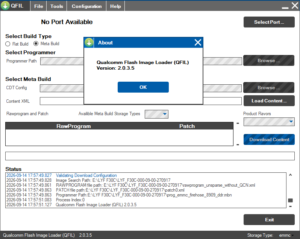
QFIL.exe. The top of the window should change from “No Port Available” to Qualcomm HS-USB QDLoader 9008 (COMXX). - Under Select Build Type, choose Flat Build.
- In the Select Programmer section, click Browse and navigate to your extracted firmware folder. Select the loader file (usually named
prog_emmc_firehose_xxxx.mbnor similar). - Click Load XML. Select the
rawprogram0.xmlfile, followed immediately by selecting thepatch0.xmlfile in the subsequent prompt.
- Launch
Step 4:- Flash the Firmware
- Double-check your connections and configurations.
- Click the Download button to begin the flashing process.
- Wait until the log screen displays Download Succeed or Finish Download. Disconnect your device and power it on.
Qualcomm QFIL Flash Tool v2.0.3.5 With Qualcomm USB Driver