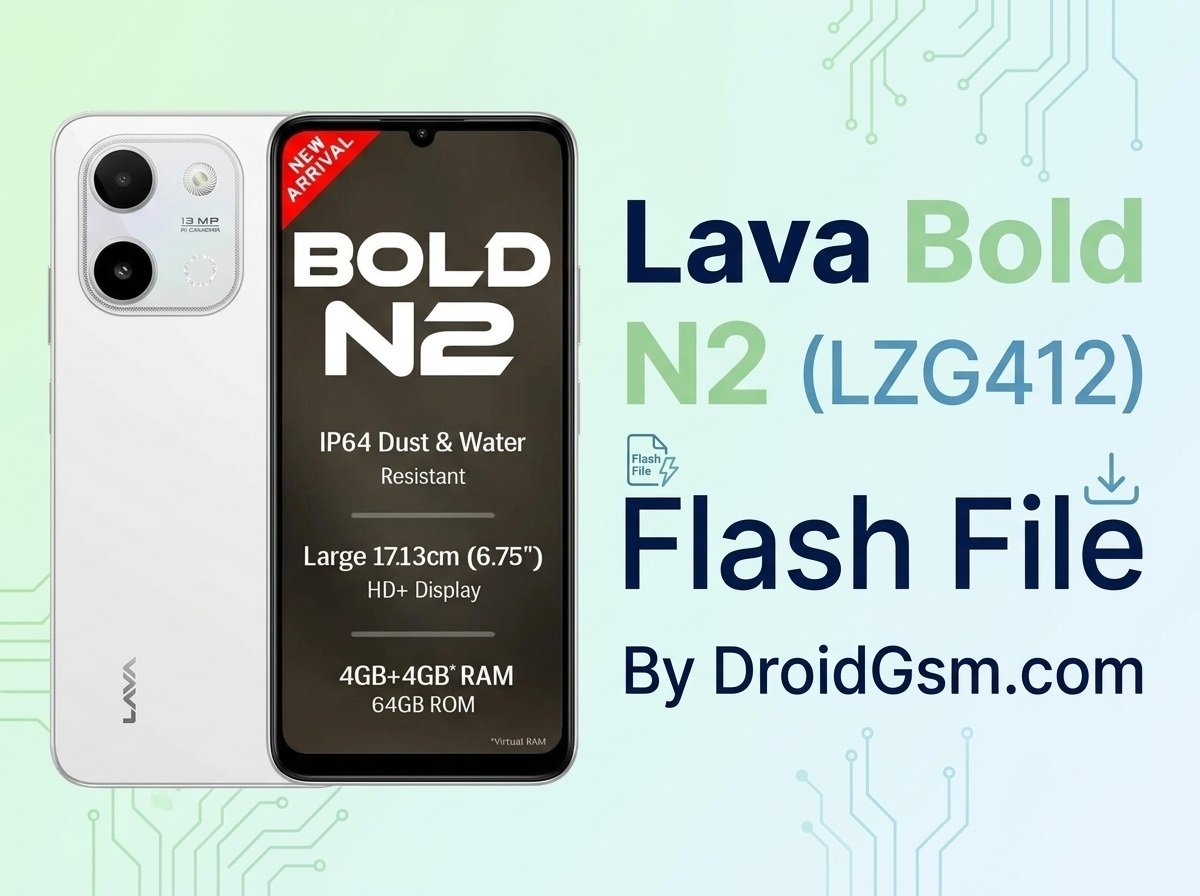
Lava Bold N2 (LZG412) Flashing Guide
Flashing the official stock firmware on your Lava Bold N2 (Model: LZG412) is the ultimate way to resolve persistent software issues, fix boot loops, remove the Factory Reset Protection (FRP) Google lock, and restore your device to its factory state.
This comprehensive guide provides the necessary flash file download links, prerequisites, and a step-by-step tutorial to flash your device safely using the official tool.
Lava Bold N2 (LZG412) Core Specifications:-
Before proceeding, confirm your exact device specifications:-
-
- Device Model: Lava Bold N2 (LZG412)
- Processor (Chipset): Unisoc SC9863A Octa-Core
- Operating System: Android 15 (Go Edition)
- Display: 6.75-inch HD+ LCD, 90Hz Refresh Rate
- Memory & Storage: 4GB RAM + 64GB Internal Storage
- Battery: 5000 mAh with 10W Type-C Charging
Issues Resolved by Flashing Stock Firmware:-
-
- Boot Loop & Hang on Logo: Fixes phones stuck on the initial boot animation screen.
- FRP Lock Removal: Bypasses Google Account verification screens after a factory reset.
- System Crashes & Glitches: Fixes frequent app crashes, extreme lag, or unresponsive UI elements.
- Unbricking: Recovers dead or soft-bricked devices caused by corrupt system files or failed OTA updates.
Download Links:-
Ensure you download all the verified software components needed for the process:-
-
- Stock Firmware (Flash File): Download Lava Bold N2 LZG412 Stock ROM (Select the appropriate Pac file matching your region)
- Official Flashing Tool: Download Unisoc/SPD Upgrade Tool (Also known as Spreadtrum Upgrade Tool)
- USB Drivers: Download Unisoc/SPD USB Drivers
Vital Prerequisites:-
-
- Backup Data: Flashing will completely erase all internal storage. Backup your critical data if your phone turns on.
- Battery Check: Charge your phone to at least 50% to avoid a sudden shutdown during the writing process.
- Original Cable: Use a high-quality or original USB Type-C data cable.
- Driver Installation: Install the downloaded Unisoc USB drivers on your Windows PC and restart the computer before moving forward.
Lava Bold N2 LZG412_SW_V_V08
Password:- lAVaDroidGsmLZG412
Step-by-Step Flashing Guide:-
Follow these steps exactly as outlined to flash your device with the Unisoc SC9863A platform tool:-
Step 1:- Extract Files
-
- Create a new folder on your computer desktop.
- Extract the downloaded Flash File zip, SPD Upgrade Tool, and Drivers into that folder.
Step 2:- Configure the SPD Upgrade Tool
-
- Navigate to the extracted tool folder and launch UpgradeDownload.exe.
- Click on the Gear icon (Load Packet) located at the top-left corner of the program interface.
- Browse to your extracted firmware folder, select the system image file ending with the .pac extension, and click Open. Wait a few moments for the tool to fully load the firmware files.
Step 3:- Connect Your Lava Bold N2 LZG412
-
- Power down your Lava Bold N2 (LZG412) completely.
- Click the Start Downloading (Play icon) button inside the tool interface.
- Hold down both the Volume Up and Volume Down buttons simultaneously on your phone.
- While holding the keys, connect the phone to your computer using the USB cable.
Step 4: The Flashing Process:-
-
- As soon as the tool recognizes the device connection, release the volume keys. You will see a blue progress bar showing text like Downloading or Writing.
- Do not touch, move, or disconnect the phone during this phase. The process typically takes 3 to 7 minutes.
- Once completed, a bright green Passed or Finish status message will appear on the tool screen.
- Unplug your device and power it on. The initial bootup may take up to 5-10 minutes to properly initialize the fresh software.
Back up your data and charge your battery before start Flashing Process.
Proceed at your own risk:- Downgrading/Upgrading firmware can permanently brick (kill) your phone if interrupted or if the wrong file is used. A dead device will not power on and requires a motherboard replacement at an authorized service center. DroidGsm.com assumes zero responsibility for any device damage, data loss, or repair costs.