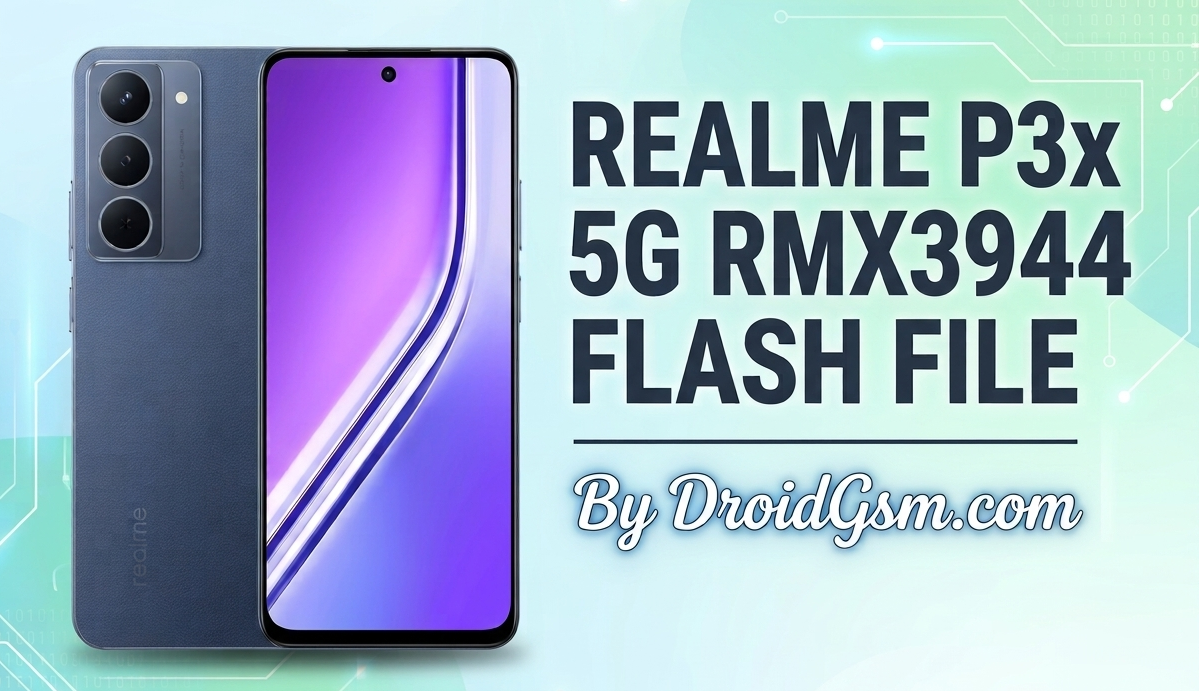
Complete Flashing Guide for Realme P3x 5G (RMX3944) Stock ROM Installation
Flashing the official stock firmware on your phone is the ultimate solution to fix severe software glitches. Whether your device is trapped in a bootloop, showing a black/blank screen, experiencing touch unresponsiveness after an update, or requiring an FRP bypass, reinstalling the Stock ROM will restore your phone to factory settings.
📱 Device Overview & Description:-
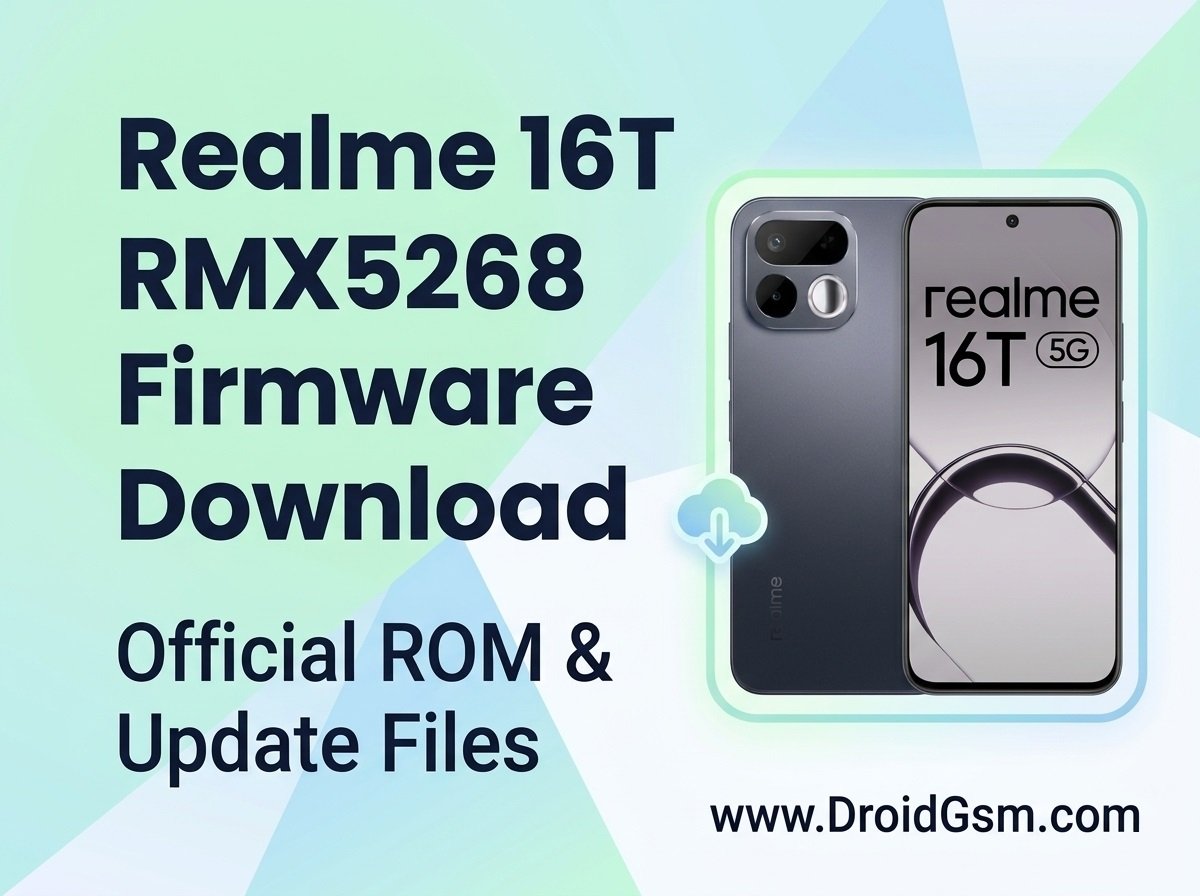
The Realme P3x 5G (Model RMX3944) is a budget-conscious, performance-driven smartphone. It features a distinctive back panel option made of Premium Vegan Leather and boasts an IP69 top-tier waterproof rating alongside military-grade shock resistance.
Hardware Specifications:-
-
- Chipset: Powered by the MediaTek Dimensity 6400 octa-core processor (MT6835 architecture).
- Display: A large 6.72-inch FHD+ Eye Comfort display with an adaptive 120Hz refresh rate.
- Battery & Charging: Equipped with a massive 6000mAh battery paired with 45W SuperVOOC fast charging.
- Memory configurations: Available in 6GB or 8GB of LPDDR4X RAM with 128GB of internal storage.
- Camera: Outfitted with a 50MP AI Dual Rear Camera and an 8MP selfie shooter.
- Software Environment: Ships out-of-the-box running Realme UI based on Android 15.
⚠️ Critical Disclaimer & Risks:-
-
- Data Loss: Flashing completely wipes your internal storage. Back up all personal files before proceeding.
- Display Brick Warning: The Realme P3x 5G uses screen panels from multiple display hardware vendors. Flashing an outdated firmware build can cause permanent black screens or touch input dead zones. Always use the latest available build matching your device’s regional profile.
- Power Requirement: Ensure your phone maintains at least a 50% battery charge to prevent it from shutting down mid-process.
📋 Prerequisites & Download Requirements:-
You must download and extract the following assets to a dedicated folder on a Windows PC:-
-
- Official Stock Firmware (Flash File):- Download the correct variant corresponding to your device. You can verify your version by entering *#899# in your phone’s emergency dial pad.
- Flashing Tool: OplusFlashTool (v5.6.44.0 or newer) or an authorized SP Flash Tool configuration tailored for the MT6835.
- USB Drivers: Official MediaTek (MTK) USB Drivers and Realme USB Drivers.
- Hardware: A high-quality USB Type-C data cable and a Windows PC.
- Official Stock Firmware (Flash File):- Download the correct variant corresponding to your device. You can verify your version by entering *#899# in your phone’s emergency dial pad.
🛠️ Step-by-Step Flashing Procedure:-
Step 1: Install the USB Drivers:-
-
- Download and extract the MediaTek & Realme USB Drivers onto your computer.
- Right-click the driver installation file (usually .inf or .exe), select Run as Administrator, and complete the setup prompt.
- Restart your PC to enforce driver signature verification and ensure seamless device detection.
Step 2: Extract the Stock Firmware:-
-
- Locate the downloaded firmware .zip package.
- Extract the file using WinRAR or 7-Zip. Ensure the extracted contents reveal the scatter files (MT6835_Android_scatter.txt), boot images, and the system payload configurations.
Step 3: Configure the Flash Tool:-
-
- Open the extracted OplusFlashTool (or SP Flash Tool) directory.
- Technician Note: If you are using a specialized tool loader, run the loader application directly from inside its compressed .zip file to bypass script runtime errors.
- Launch the tool executable and load the Scatter file or Download XML configuration by browsing into your extracted firmware sub-folder.
Step 4: Establish the Connection (BROM Mode):-
-
- Fully Power OFF your Realme P3x 5G.
- Press and hold down the Volume Up + Volume Down buttons simultaneously. Do not let go.
- While holding both volume keys, plug the USB cable from the computer into the phone.
- Your computer’s Device Manager will refresh and briefly display MediaTek USB Port or Preloader USB VCOM Port. Once recognized, release the volume keys.
Step 5: Initiate the Firmware Flash:-
-
- In the flashing software layout, verify all file partitions (Preloader, Boot, System, Recovery) are fully checked and assigned.
- Click the Download or Start command button to begin writing the firmware to the device.
- A progress bar will scroll across the bottom of the tool interface. Do not disturb, move, or disconnect the USB cable during this phase.
- Once completed, a confirmation window stating Success, Download OK, or a green checkmark graphic will appear on the dashboard.
Step 6: Post-Flash Reboot:-
-
- Disconnect the USB cable from your Realme device.
- Press and hold the Power Button for roughly 10–15 seconds to force-start the system.
- The initial boot cycle after a comprehensive firmware installation can take anywhere from 5 to 8 minutes to rebuild system caches. Simply wait for the device to present the default Android welcome setup wizard.
🔍 Troubleshooting Common Flashing Failures:-
-
- Device Not Detected: If the flash tool remains idle when the phone is plugged in, change your USB port (preferably use a rear USB 2.0 port on desktops) or reinstall the MTK preloader drivers.
- Bootloop or Dead Display After Flash: If the device vibrates but shows no image, or gets stuck on the Realme logo, you have likely flashed an older or incompatible preloader variant. Immediately find and flash the latest display-compatible repair firmware specifically optimized for recent 2026 hardware components.
- Tool Checksum Errors: Ensure there are no spaces or special characters in the directory path names where your firmware files reside. Moving the extracted folders directly to the root of your hard drive (C:\Realme_Flash\) solves this issue.