How To Flash Vivo Y29 5G (V2420)
Flashing stock firmware can resolve almost all major software issues on the Vivo Y29 5G (V2420). Below is an overview of how to installing the stock ROM helps fix software problems, followed by step-by-step instructions and the core download links for the phone’s software package.
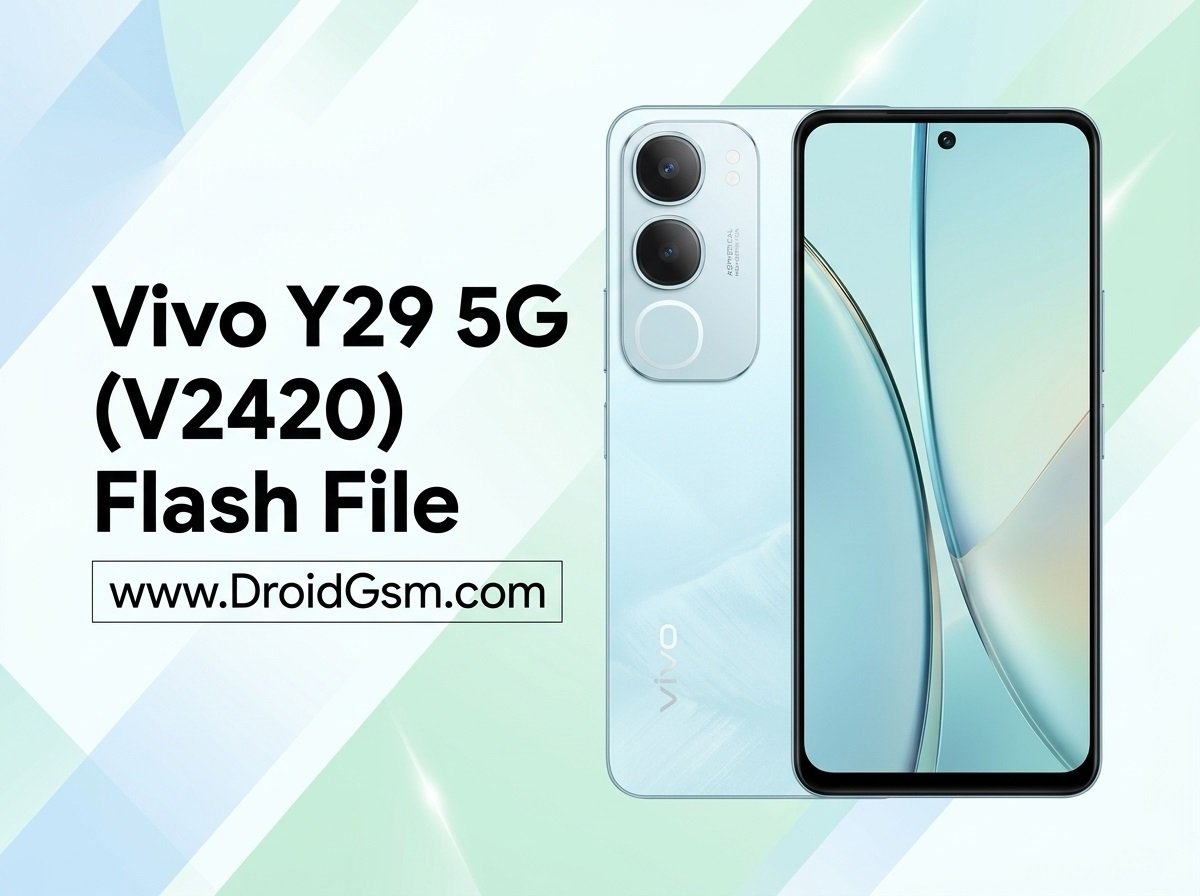
Device Specifications:-
- Processor: MediaTek Dimensity 6300 (5G Chipset).
- Software: Android 14 (Funtouch OS 14).
- Memory: 4GB / 6GB / 8GB RAM (+8GB Extended RAM) 128GB / 256GB Storage (eMMC 5.1).
- Display: 6.68-inch LCD | 120Hz Refresh Rate 720p Resolution.
- Cameras: 50 MP Dual Rear (with Ring Flash) 8 MP Front.
- Battery: 5500 mAh with 44W Fast Charging.
- Durability: IP64 Splash Proof | Military-Grade Drop Resistant.
Software Issues the Firmware Can Fix:-
Installing a fresh copy of the official stock ROM completely overwrites the existing operating system software, effectively resetting the phone back to factory conditions. This process targets and fixes:-
- Bootloops & Bricked States:- Resolves instances where the device is stuck on the Vivo logo boot animation or won’t turn on past the bootloader screen.
- System Bugs & Lag:- Clears away deeply embedded malware, persistent app crashes, sluggish system UI response rates, and severe battery drain caused by corrupt software elements.
- Unsuccessful Updates:- Repairs partial or broken over-the-air (OTA) updates that didn’t install properly.
- Forgotten Passwords:- Removes pin codes, patterns, or passwords if standard hard-reset methods fail to clear them.
Prerequisites Before You Begin:-
- Back Up Data:- Flashing clean stock firmware completely wipes internal storage. Back up anything important.
- Battery Level:- Keep the battery charged to at least 30% (50%+ recommended) to ensure the device doesn’t lose power mid-process.
- Correct Model:- Confirm your phone model reads V2420 (PD2421F) in Settings > About Phone to prevent a hard-brick scenario.
How to Install the Firmware:-
Method 1:- Using Local Upgrade (If your phone turns on)
-
- Transfer the downloaded firmware update package (
.zip) to the root directory of your phone’s internal storage or SD card (do not place it in a folder). - Open Settings > System update.
- Tap the Settings icon (gear) in the top-right corner.
- Select Local upgrade and pick the transferred firmware file to begin the process.
- Transfer the downloaded firmware update package (
Method 2:- Recovery Mode (If your phone is stuck in a bootloop)
-
- Turn off your device.
- Press and hold the Power and Volume Up buttons simultaneously until the Fastboot menu appears.
- Navigate to Recovery Mode using the volume buttons and press the Power button to confirm.
- Tap Install software (or Install update), select your package from the internal storage or SD card, and hit install.
Method 3:- Flash Via Official Flash Tool Required Auth Flashing (Paid Service). The official, authorized flashing procedure for Vivo devices requires specialized factory software known as Vivo AFTool (also called PD Flash Tool). Unlike open-source custom community scripts, the official pipeline communicates directly with Vivo’s secure backend authentication servers to sign off on the MediaTek SLA/DAA security handshake required by the Dimensity 6300 chipset.
Vivo Y29 5G (V2420) Firmware Download Link
PD2421F_EX_A_15.1.13.2.W30.V000L1_vivo_osc_mtk_alps-v0-release-main.bsp-mssi_system
Password:- VIVODroidGsmY29V2420