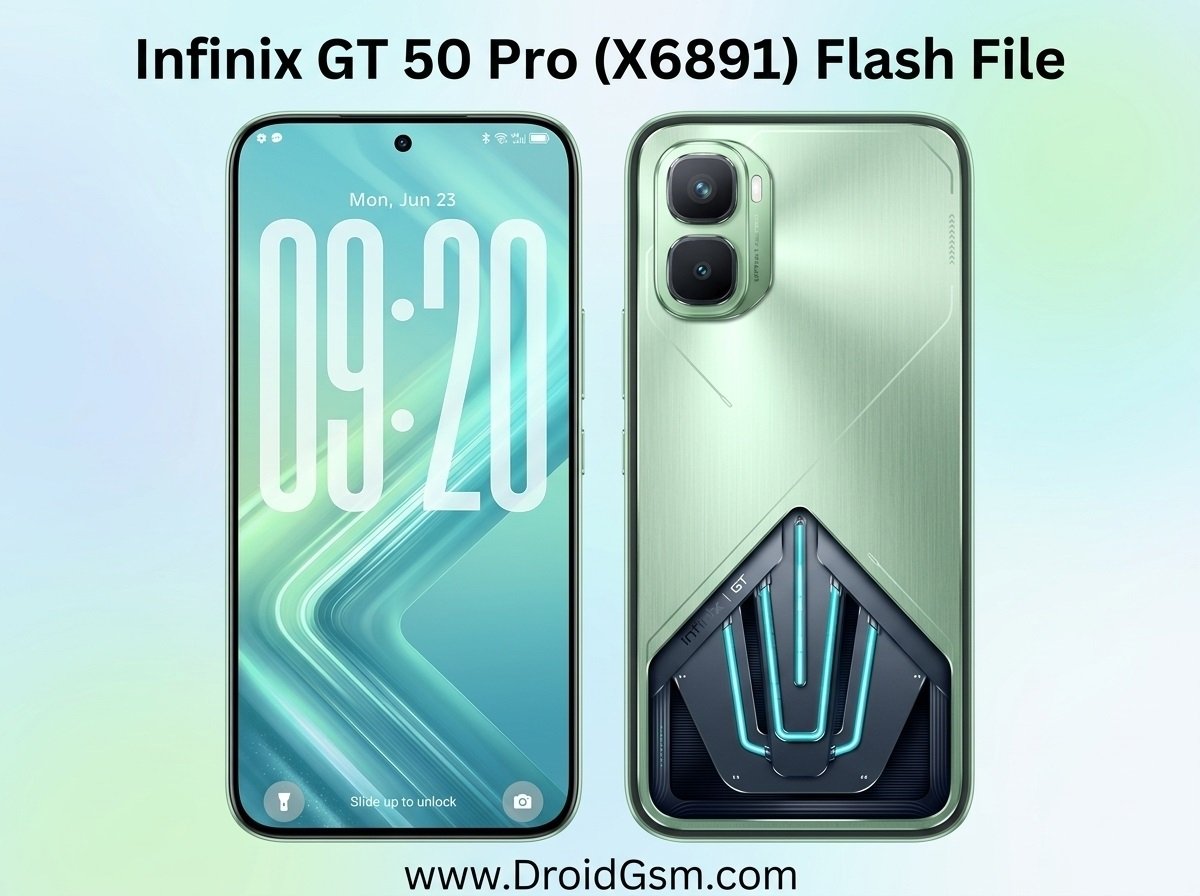
Infinix GT 50 Pro (X6891) Repair Guide & Software Troubleshooting
The Infinix GT 50 Pro (Model X6891) is a high-performance gaming smartphone powered by the MediaTek Dimensity 8400 Ultimate chipset. Running on Android 16 with the specialized XOS skin, it handles heavy gaming workloads efficiently. However, software anomalies like boot loops, system crashes, malware infiltration, or accidental soft bricks during custom alterations can stall performance. Flashing the official stock firmware (Flash File) acts as a factory-level reset. It rewrites the entire core partition of the device to resolve critical software errors.
Device Specifications:-
- Processor (CPU):- MediaTek Dimensity 8400 Ultimate (4nm) Mali-G720 MC7 GPU HydroFlow Liquid Cooling.
- Storage Type:- 12GB LPDDR5X RAM | 256GB or 512GB UFS 4.1 storage (no SD card slot).
- Display:- 6.78-inch 1.5K AMOLED (1208 x 2644) | 144Hz refresh rate | 4500 nits peak brightness.
- Cameras:- 50 MP main (with OIS) + 8 MP ultra-wide rear | 13 MP front camera.
- Power:- 6500 mAh battery | 45W wired fast charging | 30W wireless charging | Gaming Bypass charging support.
- Software:- Android 16 (XOS 16) Dual Pressure-Sense triggers RGB customizable backlights.
Issues Resolved by Flashing Stock Firmware:-
Using the official firmware file for the X6891 allows technicians and advanced users to fix several prominent Android software issues:
-
- Boot Loop Fix:- Resolves the issue where the device stalls indefinitely on the Infinix or XOS boot screen.
- Unbricking:- Recovers a “soft-bricked” phone caused by corrupt custom recoveries, interrupted OTA updates, or incorrect root permissions.
- Bypassing Forgotten Locks:- Removes device pattern, PIN, or password screen locks when recovery menu wipes fail.
- Fixing Performance Degradation:- Eradicates recurring application force-closes, severe UI lag, and stubborn malware infections that survive normal factory resets.
- Network & IMEI Restorations:- Rebuilds broken baseband zones or handles “Invalid IMEI” glitches arising from improper software tinkering.
Essential Prerequisites Before Flashing:-
Flashing system partitions carries inherent risks. Ensure the following parameters are satisfied before continuing:
-
- Backup Data:- Flashing replaces all data partitions. Move your photos, accounts, and personal documentation off the phone if it remains partially accessible.
- Battery Threshold:- Maintain at least 50% battery capacity to prevent abrupt power-offs during the rewrite process.
- Correct Hardware Model:- This package is built exclusively for Model X6891. Do not cross-flash onto alternative variants to avoid hard bricks.
- Hardware Interface:- Prepare a reliable USB Type-C data cable and access to a Windows PC.
Step-by-Step Installation Procedure:-
Step 1:- PC Environment Configuration
-
- Download the MediaTek USB Drivers package onto your computer.
- Run the driver installer as an administrator and complete the prompts. Restart your PC to stabilize communication ports.
- Extract the downloaded Infinix X6891 Firmware bundle into an accessible folder (e.g., directly onto the
C:\drive to maintain clean directory paths).
Step 2:- Setting up SP Flash Tool
-
- Extract the SP Flash Tool archive and run
flash_tool.exe. - Locate the Download-Agent (DA) box inside the program and load the default file (usually named
MTK_AllInOne_DA.binor a specific DA customized for secure Dimensity lines). - Click on the Scatter-loading File field, navigate to your extracted firmware folder, and select the specific text configuration file (e.g.,
MT689X_Android_scatter.txt). The software will automatically populate the partition matrix list below it.
- Extract the SP Flash Tool archive and run
Step 3:- Preparing the Target Device
-
- Power down your Infinix GT 50 Pro entirely.
- Inside the SP Flash Tool dashboard, change the drop-down flash mode parameter to Download Only.
- Warning: Avoid choosing “Format All + Download” unless you are fully prepared to rebuild the device’s physical IMEI and baseband telemetry manually.
- Click the green Download button at the top of the interface. The tool will enter a standby state waiting for the hardware target.
Step 4:- Initialising the Flash Sequence
-
- Hold down both the Volume Up and Volume Down buttons on the phone simultaneously.
- While maintaining pressure on the buttons, connect the phone to your computer using the USB Type-C cable.
- Once the software catches the phone’s connection state, a red progress bar will flash across the lower workspace, indicating a successful handoff. You can now release the volume keys.
- The bar will turn yellow as it transfers individual system structures. Do not nudge the cord, unplug the phone, or close out software windows during this time.
Infinix GT 50 Pro X6891 16.1.0.160SP12(OP007PF001AZ) Flash File
Password:- InFiNIXDroidGsmGT50Pro
Step 5:- Finalization
- A small pop-up configuration window displaying a green circle or an “Ok” validation mark denotes a complete flash.
- Disconnect the USB cable safely from the computer.
- Hold down the Power button to prompt the phone to boot. The initial setup sequence can take between 5 to 10 minutes as Android optimizes partition storage frameworks.